sMobile ? "width=device-width,initial-scale=1.0,minimum-scale=1.0,maximum-scale=1.0" : "width=1100"' name='viewport'/> android xda: How Tos
Showing posts with label How Tos. Show all posts

Tuesday, 21 November 2017

How to install iOS 11 beta 3 without developer account and a computer| for more go to rompure.com

Apple, iPhone had just release the iOS 11 beta 3 for developers, with this release you can only install the iOS 11 beta 3/if you have a developers account, and the installation have to take place on a computer, the iOS beta 3 came with great improvements, annoying bugs has been fixed, such as the unresponsive screen, hangings, slowing and some other bugs, if you are a user of iPhone or iPad, and wish to install the iOS 11 beta 3 on your phone but feel sad for not having a developers account, do not worry we have a simple hack to enable you install the ios 11 beta 3 on either your iPhone or iPad without the developers account, and a computer.
IOS 11

How to Install iOS 11 Beta 2 without a Developers account:

This tutorial is categorized into two, the first one pays attention to those who had already installed the iOS 11 beta 1 and 2, while the second one focuses on iOS devices that had never received the iOS 11 beta update, so now we begin with the first one.

How to install iOS 11 beta 3 on iOS beta 1,2:

If you already have the iOS beta 1 installed on your phone

  • First download and reinstall the iOS 11 beta software by clicking here. (Use safari browser)
  • Now tap on the iOS 11 beta (updated) option, and install the updated iOS 11 beta profile.
  • It will automatically prompt you to restart your device, click on restart to continue, 
  • wait for the device to fully restart itself, if rebooted successfully navigate to Settings>General>Software Update tap on download and install button to install iOS 11 beta 3

How to install iOS 11 Beta 2 on previous IOS versions

if you are installing the iOS 11 beta 2 for the first time.

  • grab your iOS device then head over to this link, make sure to use Safari browser, not any other one just Safari to access that link
  • The above link will automatically redirect you to the official iOS Beta software profile, on the profile page tap on the install button three times, then select the reboot option
  • If rebooted successfully navigate to Settings > General > Software update, the iOS 11 beta OTA update should be available for download on your device, please wait for the download should come up, at it may take some few minutes to come up, or restart your iPhone or iPad and try again
Now download and install the iOS 11 Beta 3 as usual, if you have any troubles, installing the iOS beta 3 on your iPhone or iPad do hesitate to ask your questions through the comment box.

Monday, 20 November 2017

How to Hide Any File in an Image File in your PC | for more go to rompure.com

How to Hide Any File in an Image File in your PC 


Hiding files on your computer is a clever idea, and you can easily find ways to do it. After all, you do not want prying eyes snooping around in your confidential files. However, finding hidden files on a computer is common knowledge. In fact, you can read Xclusivetek tutorial on how to show or hide hidden files on your computer. If you have a highly sensitive file that you do not want others to access, here is a simple tutorial for you. You can hide any file on your PC inside an image file.

READ ALSO
>> How to Reset Your Windows 10 Password easily

How to Hide Any File in an Image File

In this tutorial, we will explain how to hide a file in an image. It is actually possible to put any file into an image file without altering the image’s function, which means the image file can still be opened normally. That may seem too complicated, but it is really easy. Read on and follow the steps below to get started.
You need to merge the file that you want to hide and the image file of your choice. Here’s how to do it.
1.Choose the file that you want to hide. For the purposes of this tutorial, I will hide an Excel file named 0.The Book.xls.Choose the file to hide
2.Compress the selected file into a ZIP file. You can right-click on the file, choose Send, and then click Compressed (zipped folder).Compress the selected file
3.compressed folder will be created on the same folder where your original file is located. You can now opt to delete or transfer the original file for back up purposes.compressed file will now be on the location
4.Once you have the file on the zipped folder, it is now time to choose the image file where you want to “bury” and hide the compressed folder. Here, I will be using the image of a Joker named why_so_serious.jpg.select image file
5.Place the compressed folder and the image on the same folder. In this example, I will place the files on the Desktop. If you are not familiar with the Command Prompt, I suggest that you place the files on the Desktop so that you can follow along easily.put both files in the same location
6.Take note of the compressed folder’s file name and the selected image’s file name.take note of the file names
7.Open Command Prompt. You can search for CMD on the search feature of your computer. You can also use the shortcut Windows+R (for run) and type in CMD.open command prompt
8.With the Command Prompt open, change the directory to the Desktop by typing this command into the CMD Prompt: cd desktop.change drive using CD command
9.Command Prompt will now show that you are on the Desktop. Enter this command into the CMD Prompt: copy/b filename_of_image + filename_of_zipped_folder. For this example, I typed in copy/b why_so_serious.jpg + 0.The.Book.zip.enter command to merge in CMD
10.Command Prompt will let you know that process has been completed when it shows the a file has been copied.file now merged
11.You will now notice that the image’s file size has now increased. This is because the file is now a combination of both the compressed folder and the image.file size has been changed
12.The selected file has been successfully hidden in an image. You have the option to delete the compressed folder or transfer it to another location or drive. You can still open the image, and it will still show the Joker, as in this example.
image file will still open


How to Open the Hidden File from an Image

The hidden file is somehow compressed into the image. To open the hidden file, you need to decompress it using a file decompression tool such as WinZip or WinRAR. For the purposes of this tutorial, I will use WinRAR. To open the hidden file using WinRAR, follow these steps:

1.Open your file decompression tool. In this case, I will open WinRAR.open WinRAR
2.Locate the destination path of the image file containing the hidden file. My file is located on the Desktop, so I will locate the file from there.choose desktop as destination on RAR
3.Click on OK, and the file will be decompressed on the same location. The decompressed folder will contain the same name as the image file.extracted folder on desktop
4.Open the decompressed folder, and you should see the hidden file on it.hidden file now on folder
5.The extraction of the hidden file was a success. You can now open the file and use it as you like.hidden file now opened
Did you have some problems while doing any of the steps above? Is the tutorial not working for you? Let us know in the comments section so that we can get back to you.

How to Set Full Size Profile Picture on Whatsapp Without Crop| for more go to rompure.com

WhatsApp is one of the well known mobile social media which is used to chat,  share ideas,  pictures and videos with fiends,  family and love ones.  
Whatsapp keeps rolling new updates from the increase in group members,  addition of video call,  uploading your status inform of pictures or videos. 
Although with the updated from Whatsapp,  they fail to notice the essential update that should be done i.e allowing it's users uploading a full size profile photo without cropping. Some users would like to show the full profile photo but are prompted to crop your photo before uploading. 

READ ALSO
√ HOW TO SAVE YOUR WHATSAPP STATUS PICTURES AND VIDEOS TO GALLERY

How to Set Full Size Profile Picture on Whatsapp Without Crop

Uploading a full size photo as your profile picture can be made possible without root,  you simply need to square your picture before uploading it. 
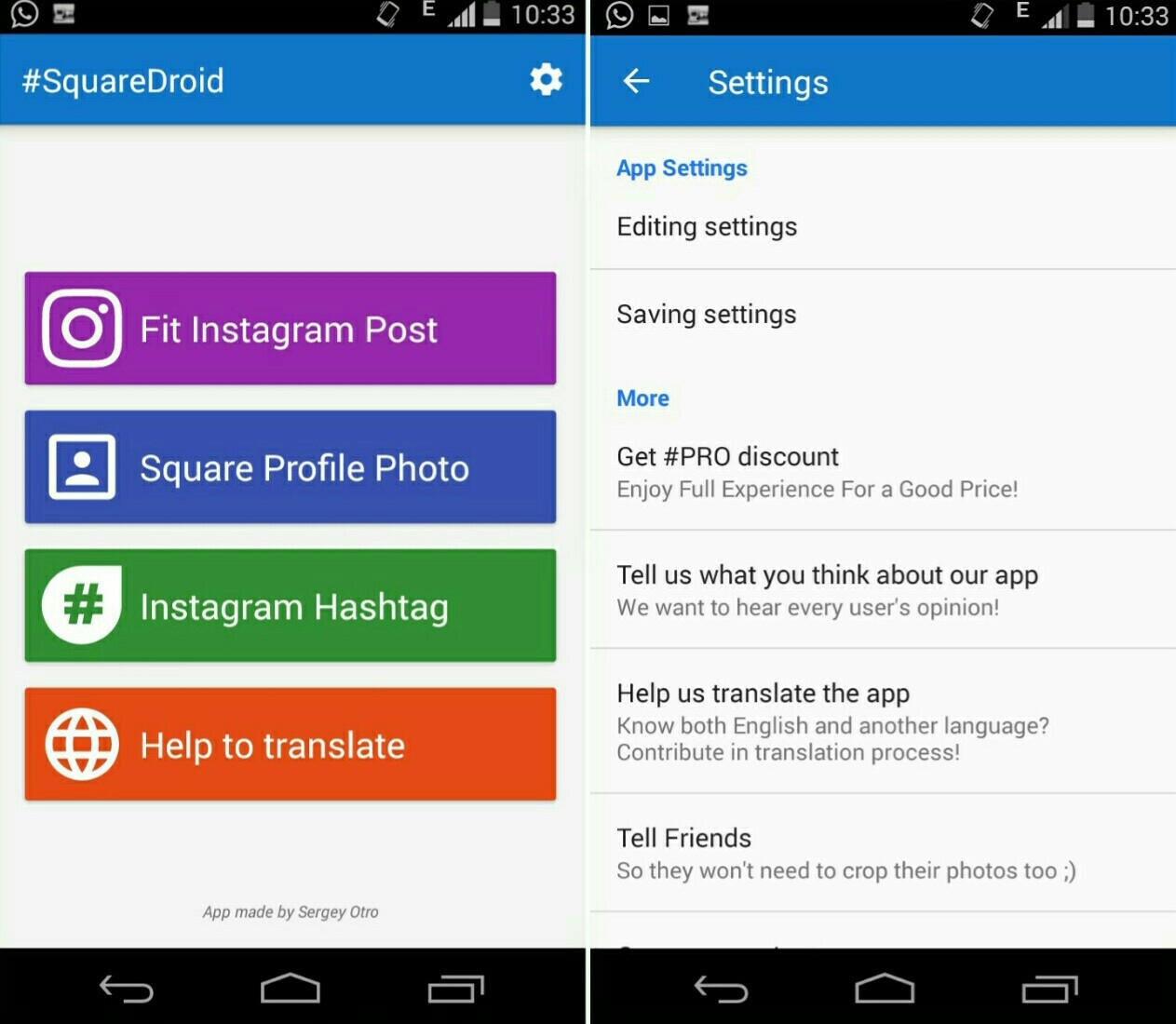
This can be done using Squaredroid: No Crop App. 
Squaredroid is an Android app that allows you upload full size photos on Whatsapp, facebook,  instagram, twitter and other social media without cropping. 
1. First,  download #SquareDroid: No Crop App. and install it.  It's a free app, although you can upgrade to the Pro version in other to enjoy a new express-save feature that helps you to save edited image quickly.


2. Launch SquareDroid and tap the "Square Profile Photo" button. Next, you scroll through your gallery to choose a picture you wish to use as your WhatsApp profile picture 
3. You will be prompted to choose the selected image Border type. Simply click on  Blur, as it makes the image look more lively.Use the slider to adjust the blurriness of the image to atleast 45% or more. Then tap done!.

4. Next, you'll notice some image editing tools such as rotate, scale, crop, save etc. You may wish to edit the image to suite your taste. Notice the floating color palette icon, this helps to change the image border type. 

Once you're done simply save the image by clicking the Save button, then select save format and tap Save Photo.
5. Now launch your WhatsApp messenger and go to the profile option,  Settings >> Profile. Click on the Camera, icon and then browse through your gallery and select the image you had earlier saved.  
It will automatically fit in the Whatsapp crop size and Click Done to set as your Whatsapp profile photo. 
Final Words

You can now upload anybody your photo as your Whatsapp profile photo without cropping thanks to Squaredroid.  
If you any app similar to squaredroid that can make you square your photo,  feel free to notify us using the comments. 

Thursday, 16 November 2017

How To Use VPN Master On Android device | for more go to rompure.com

Most android users love to enjoy the unlimited features of the internet when browsing.  Some websites use IP address to limit the features of their site to some countries. Inorder to enjoy full features of those websites,  there is need to mask your address and make it correlate with top countries like USA,  UK, Canada, Netherland, South Africa, Hong Kong, Germany, France, Italy, Sweden and so on to enable you visit restricted website freely. Thise apps are called VPN (Virtual Private Network)
There are lots of Android VPN apps but most of them comes with a premium feature which you have to buy.  Most users look for unlimited free Vpn that they can use in their smartphone.  Today, I will introduce a secure Vpn app called VPN Master. Vpn Master is an unlimited free Vpn Android app that gives you Foreign country stable IP and changes your location to a foreign location selected.  Using this app allows you not to worry about restrictions in some websites when surfing the web.

How To Use VPN Master On Your Android Phone 


1. Download Vpn Master and Install it in your Android Phone. 
Vpn Master Apk Download 

2. Next launch the App 

3. Click CHANGE REGION and Select the Country you wish to change to from the drop down options.
vpn-master-apk


4. Once you have selected region,  you can now switch on your Mobile data and Click ON to start the VPN app. 
vpn-master


5. Once connected you can now start to browse from USA,  UK or any other region selected 
If you wish to confirm your location, 

LATEST
√ Psiphon A+ Pro Black Apk Download

visit iplocation.net or whatismyip.li

Tags: Best Vpn, secure Vpn, unlimited free vpn

Wednesday, 15 November 2017

How To Stream Movies from Phone to Ps4| for more go to rompure.com

Did you know you can connect your phone to your Play Station 4 and watch videos directly on the PS4? 
Of course yes! It's very possible. You can even stream and watch videos directly on your TV with the help of a ChromeCast. I will be guiding you on how to connect your Android phone to your PS4.

Watching videos on a bigger screens is more interesting when it comes to quality video experience. That's one of the reasons people go for phones with bigger screens, but it can't still be compared when been watched on TV.

Today's tutorial will be focused on connecting your android phone to your PS4 and watch media content directly on TV. This will be made possible by an Android app called Pixel Media Server.

Pixel Media Server offers basic functionality. However, it does allow you to browse the entire folder structure of your smartphone and locate all your media. If you want an app with a little more design, you can try outBubble UPnP and iMedia Share.

Bubble UPnP is quite powerful, but you need to buy a full license to use it if you must stream for more than 30 minutes. The license costs $4.50 with an in-app purchase.


iMedia Share is simple and it condenses all your streamable media into Photos, Videos, and Music folders when viewed on your PS4. However, it pulls in system images and audio sounds, which you probably don’t need to see. Therefore, Pixel media Server is your best medium  for streaming to your PS4.


HOW TO STREAM FROM ANDROID PHONE TO PS4 USING PIXEL MEDIA SERVER

√ First, download from the link below and install Pixel Media Server on your Android smartphone. 

√ Open the application and tap DMS Name to give a name to your device.

√ Tap Share Folder to select which folder you want to share.

√ Tap the Play button at the bottom to start Pixel Media Server.

√ Turn on your PS4 and ensure that it is on the same WiFi network as your Android smartphone.

√ Open the media player on your PS4

√Select the Pixel Media Server drive

√ Navigate to the folders to locate and stream photos, videos and music files from your phone.

That's all friends. Hope you find this useful? Please comment and share.

Download Link

PIXEL MEDIA SERVER download

How To Change Mobile Network and Keep the Same Number| for more go to rompure.com

Can i keep my landline phone number if i switch providers?

Moving your mobile number to another network involves you switching your mobile network provider while maintaining your current phone number. Yes,  It is possible to do so but some people think it's very possible.  It's like porting from one networks to another and retaining your landline phone number .
change-network-same-number

How To Change Mobile Network and Keep the Same Number

You may have your own reason(s) why you need to switch your phone number service provider. You should be aware that switching network providers is not the same as retrieving a lost SIM card.  Retrieving a lost SIM card with the phone number is known as "Welcome Back". You still retain in the same service provider but get back your lost or stolen SIM card phone number.  
In UK, it is a very straight forward procedure to move your phone number from one network to another, all you need is a PAC code and the rest of the steps will be as easy as ABC. Before I give you the steps to follow, you might want to know about the PAC code and how to obtain it.
PAC codes (Porting Authorization codes) are a code needed to port from one network to network. It is usually a nine digit number containing three letters followed by six digit numbers (something like PQR 234 567). The process of porting is completely free thus all you need to is listed below.
The Procedures Made Easy
Start by obtaining the PAC code from your old network: This can be done by contacting the customer care department of your current network. On contacting your customer care line, you’ll be passed to the customer retention team from which you can make your request and in the next 2hrs, you’ll receive the code. If they refuse, you are to remind them of their legal obligations. Your PAC code once issued is valid for the next 30 days meaning you must keep it safe plus your old plan needs to be active until the phone number transfer is completed and if the 30 days run out and you were unable to finalize the transfer, that simply means you’ll have to start all over again, thus, demands accuracy and efficiency.
Get a new sim card: The next step from here will be to order a new sim card. As usual, you’ll be given a temporary number you could use until the processes are finalized.
Contact your new mobile network: You should Give them your PAC code to your new network through an online form or by contacting them directly with your phone. You’re phone number transfer will be scheduled for the next day which after will be irreversible once the procedure is completed.
N/B: If you are buying your new mobile number online it is expected that you;

√ Contact your service provider for a PAC code.
√ Choose a mobile handset and network tariff of our choice and order.
√ Your phone will be sent to you while you have passed any credit check.
√ Will be connected through the instructions you will receive and once connected, a temporary phone number will sent to your phone.
√ Contact your new mobile number’s service provider and give them the number you wish to port to along with your PAC code.
√ Your old number will be replaced with the new in the next two working days but in the case of weekend, it may be delayed.

Tags:
how to change mobile network and keep the same number, transfer phone number to another phone, how to transfer phone number to new iphone, change mobile phone provider keep number, can i keep my landline phone number if i switch providers, how to switch phone carriers and keep your number

Believe this article was helpful, we would love to know your experience you had in changing your network provider and retaining the same phone number. Don't forget to share this information with your friends on Facebook, Twitter, WhatsApp and Google plus.

Tuesday, 14 November 2017

How To Create Gmail Account: Gmail Sign in Register | for more go to rompure.com

Getting a free email account is very important. Irrespective of your age, occupation,  gender,  we all need an email account where we can receive our private and important mails. Before registering in any site,  you need an active mail account so there is need to create one.  There are lot of web mail providers such as Yahoo mail, Gmail,  Hotmail and so on. 

In this article,  we will enlighten you how to create email address gmail which is hosted free by Google. 
gmail-registration

The features  of getting a gmail Google mail account is so important making virtually 80% of web users have one or more Gmail Account(s).

Do I Have to Pay to Open a Gmail Account?
Gmail account Sign up is very simple sign upand is absolutely free of charge.
You can send and receive mails from other email like yahoo mail,  hotmail, protonmail and so on.

Did You Know That You Need a Gmail Account for You Phone
Most smartphones comes with various Android Versions and a Gmail Account is need at least to enjoy maximum features of your phone. 
Receiving mails from Gmail Account is easy with your Gmail App on your phone when you sign in (Gmail Sign in).
Without wasting much of your time lets proceed on gmail.com account registration, registration procedures, and how to create one. 


How Do I open a Gmail Account? 


Below are the steps to open a free gmail account. 


How to Create Free google.com Gmail Account 


1. First, visit www.gmail.com official Registration page
You will be directed to gmail homepage either to sign in OR register a new gmail account. 

2. Register a free gmail account by filling the gmail registration form.

  • Enter your Name! { xclusivetek }
  • Fill in Username! { xclusivetek@gmail.com }
  • Enter your preferred password (the one you can remember, ensure your password is kept secret) 
  • Enter your Date of birth { month/day/year }
  • Select Gender {male or female or other}
  • Put your Mobile number { +44488394o43 }
  • Enter your Location or country { Uk or usa or canada or any country of your choice }


3. After inputting the details correctly, click on proceed.

4. A new page will be displayed which you will be asked to verify your account via your mobile number and click on continue button.
Input the verification code you received from google then click on continue to verify.
Viola!! You have successfully created a gmail account for free. To sign in gmail account,  simply visit gmail.com and input your email address and password. 

Learn Also


 Protonmail.com: How To Create a Proton Mail Account 

Yahoo Registration: Register,  Sign in Yahoomail.con


Conclusion 
Getting a gmail new account has lots of benefits ranging from the fact that it's free,  generally acceptable in all websites,  can be used to access other benefits from Google such as creating a free blog from blogger.com, registering for Google Adsense, YouTube, google drive, google playstore and lots more.
If you are having issues creating a Gmail account, feel free to ask using the comment. 

Don't forget to share to friends on Facebook, Twitter, Google Plus and Other Social Media using the share buttons below

Tags: how To Create Gmail Account: Gmail Sign in Register gmail new account sign in, create new email account, create email address gmail, Sign in gmail

Monday, 13 November 2017

How to Install TWRP 3.1.1 Recovery on HTC U11| for more go to rompure.com

Installing TWRP Custom Recovery on your HTC U11 smartphone allows you to install custom ROMs, create a nandroid backup, advanced options like formatting the system partition, root your phone and lots more. TWRP 3.1.1 Recovery is now available on HTC U11 and in this article, you will be guided how to install it.
HTC U11
Prerequisites:

  • This TWRP Recovery tutorial is only for unlocked HTC U11. Please don’t try this on any other variants of the phone.
  • Make sure you backup all your data in your phone before proceeding.This will void your warranty.
  • HTC Sync should be installed with full working ADB/Fastboot before performing the tutorial.
  • Bootloader should be unlocked.
  • Don’t Worry We Are Going to share Step by Step Guide to Safely 
Disclaimer:

Xclusivetek provide various Firmware Updates and Rooting process along with Custom ROM,Modes,file are all belong  to their owners/developers. The author of this site or the developers are not responsible,  if you damage or brick your device.Do it on your own risk and follow the instruction properly.
 

>> How To Root Huawei P10 Lite and Install Recovery


Note:

Backup important files stored on your device before proceeding with the steps below, so that in case something goes wrong you’ll have backup of all your important files.
How to Install TWRP 3.1.1 Custom Recovery on HTC U11 :
1. Download Fastboot / ADB package from the following links depending on your OS and extract it anywhere in your computer.

•Windows: Download here.
•OS X: Download here.
•Linux: Download here.

2. Connect HTC U11 to your PC with a USB cable and install ADB drivers.

3. Download TWRP (twrp-3.1.1-0-ocn.img) from the link below and copy/paste it in the android-sdk-windows\platform-tools directory.

4. Go to Fastboot/Bootloader mode now. How? Navigate to android-sdk-windows\platform-tools directory and open Command Prompt (Shift + Right-click > Open Command Prompt).

5. Type in the following command and press Enter.
adb reboot bootloader

6. HTC U11 will switch OFF and then boot into the Fastboot Mode. Once the drivers are installed, proceed below.

NOTE: Alternatively, you can also enter Fastboot Mode by switching OFF your phone first. Then turn it ON by holding Volume Down + Power buttons together.

7. Then type the following command and press Enter.
fastboot flash recovery twrp-3.1.1-0-ocn.img

8. Once completed, choose RECOVERY from the Fastboot menu and enter Recovery Mode. Navigate up and down using the volumekeys.

9. If you see TWRP Recovery, then everything so far has been successfully performed and custom recovery is installed.

10. Since everything is going on well, you can go back to your normal phone by rebooting HTC U11. Select “reboot system now” from the recovery menu. The phone will boot now.
Wow, you have successfully installed TWRP Recovery on your HTC U11 device .

How to access Recovery Mode? 
Turn OFF your phone. Switch ON your phone again by holding Volume Up + Power buttons together and you will be taken directly to the TWRP Touch Recovery menu.

Hope you enjoyed this tutorial. I you have any questions or complaints feel free ro ask using the comment
Download

How To Root Huawei P10 Lite and Install Recovery| for more go to rompure.com

Huawei P10 Lite is a 5.20-inch device with 4GB RAM and 32GB Internal Storage powered by 2.15GHz octa-core HiSilicon Kirin 658 processor running Android 7.0. Huawei devices are really great, Good news to all Huawei P10 Lite 2you can now root your smartphone and enjoy your smartphone features to it optimum user.
how to root huawei p10 lite
Rooting Huawei P10 Lite involves installing TWRP Recovery method via ADB Method. and flashing Super SU. 

Disclaimer

Read this post very well before flashing the recovery to avoid any errors or brick of the device. I believe many using this device have googled on how to root their device without getting any good result worry not with this ported recovery you can now root your device in a minute and get the freedom you need to explore your device the way you like it. Read the tutorial below to the end so that you can root your Huawei P10 Lite

We are not responsible if you brick your phone at the process of flashing the recovery

Things You Need

  1. PC
  2. VComm Drivers 
  3. Sp Flash Tool Download   
  4. Download Magisk Superuser here   then save it in your phone memory, not SD card

Feature Of The TWRP Recovery

1. NVRAM backup
2. boot.img backup
3. Recovery.img backup
4. Uboot backup
5. Emmc repair
6. Recovery.img and boot.img install/flash
7.more features now working.
8.Most features are working
9. TWRP features working correctly…

Install Recovery On Huawei P10 Lite

  • To Unlock your device Bootloader
  • Download the Twrp Recovery From below link,
    Download ADB folder and Fastboot driver Installer.
  • Go to Setting >> about Phone >> type 7 time Build number >> Back >> Developer Option and Enable Device Debugging And Oem Unlock.
  • Now Install Correct ADB and fastboot Driver on Your PC
  • Go to ADB folder then connect your device the to PC Via USB cord
  • Type Cmd at the top URL bar of your drive C to bring the Command Layout
  • Then type this command Adb Reboot bootloader
  • Your Device should  into Fastboot Mode
  • Now copy the recovery you downloaded to the adb Folder.
  • Now type this Command Fastboot flash recovery recovery.img
  • The above command will make ADB flash the Recovery you copied to Adb folder
  • Now type this Command Fastboot Reboot to reboot your device to normal Mode
Vola you have successfully flash recovery on your device so next thing to do is to root  Huawei P10 Lite, please use the SuperSu provided in this post other versions of SuperSu may not work for you.

How To Root Huawei P10 Lite

  1.  Reboot your device into Recovery Mode with the below command
  2. ADB reboot recovery
  3. You are advised to create a nandroid backup now
  4. Do a factory reset,
  5. Flash the Latest SuperSu.zip,
  6. Volia your are now rooted.
Now Enjoy Your Rooted Device
Are You lost? Ask your Questions.
Share Post to your Friends
Credit
Porter
Xclsuivetek