sMobile ? "width=device-width,initial-scale=1.0,minimum-scale=1.0,maximum-scale=1.0" : "width=1100"' name='viewport'/> android xda: HTC Tutorials
Showing posts with label HTC Tutorials. Show all posts

Tuesday, 22 November 2016

How To Update HTC ONE M7 To Android 7.0 With CM14.1 ROM

Here you will learn to update HTC One M7 to Android 7.0 Nougat using a custom ROM, CM14.1. The ROM is not an official software released by Sony instead it's the result of the great works of the third party developers utilizing the AOSP.
Advertisements.

HTC One M7 is not a new smartphone, it's about three years old phone released at 2013. The phone comes with adorable hardware and software specifications. That could be the reasons why the developers give good attentions to it and award it with CM14.1 Android 7.0 Nougat ROM.

So if you want to taste the Android 7.0 Nougat on HTC One M7 of yours, then this post will help you to achieve that. If you want to know the steps to do so. Then keep reading because I have prepared the instructions section for you to follow.

The ROM's features.
  • It is based on Android 7.0.
  • Contains Cyanogenmod 14 Themes.
  • There are Android 7.0 Ringtones / Wallpapers / Design.
  • Fast, stable, nearly lag and hang free.
  • Support gravity box.
  • Pre-rooted is here guys.
  • Battery Manager feature.
  • Multitasking manager.
Things that work.
  • Boots.
  • Sim Working.
  • Bluetooth.
  • WIFI.
  • All Apps.
  • GPS.
  • Data connection.
Preconditions.
  • Your HTC One M7 bootloader must already be unlocked.
  • Remember that installing this ROM zip file requires a custom recovery, therefore make sure you have installed TWRP recovery (Install TWRP on Android).
  • Be sure you already backup all your important data.
  • Enable USB debugging mode of your HTC One M7 first.
  • All the steps here must be followed entirely without you skip any steps.
  • If your device's batter power is less then charge it first before proceeding.
  • Your device's warranty will be voided for flashing this ROM.
The following files must be downloaded to your computer.

How to update HTC One M7 to Android 7.1 Nougat using CM14.1 custom ROM

Follow the instructions written on this post but all the possible risks are yours to bear.
Advertisements.

  1. Now use your USB cable to connect your HTC One M7 to computer.
  2. When the devices are connected then you need to transfer the files to computer.
  3. After that you must disconnect your phone from computer.
  4. Turn off your smartphone then turn it on again to boot into the CWM recovery.
  5. Within CWM recovery then you need to select the Wipe Data/Factory Reset.
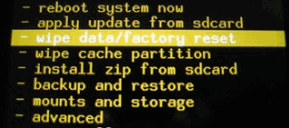
    Wipe Data Factory Reset CWM
  6. After that, you must choose the Wipe Cache Partition. Continue your step by selecting the Wipe Dalvik Cache.
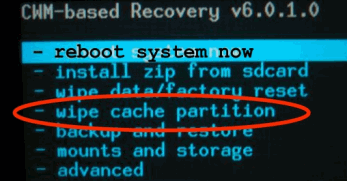
    CWM Wipe Cache Parition

    Wipe Dalvik Cache
  7. And then choose the Install Zip From SD Card -> Choose Zip From SD Card to further search the CM14.1 Android 7.1 Nougat ROM on your smartphone.
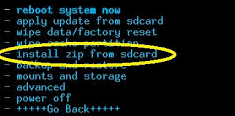
    Install zip from SDCard

    Choose Zip From SD Card
  8. Now back to the main menu then choose the *****Go Back***** -> Reboot System Now.
    Reboot System Now CWM Recovery
  9. Reboot the phone.
  10. Done.
Well done my friend because you have successfully updated your HTC One M7 to Android 7.0 Nougat ROM and you should be happy with it. If you have any questions then don't be a stranger to reveal them below. And I hope you find this post useful. See you again on my next posts.

Saturday, 1 October 2016

Download HTC Sync Manager For Windows And Mac

Download HTC Sync Manager For Windows and Mac now. HTC Sync Manager is a software that is provided for free by HTC to assist HTC users syncing all media content from device to computer, vice versa.

The syncing process is amazingly easy and fast, the contents you regard precious such as contacts, calendar, documents, web browser bookmarks and so on can by synced, organized, and managed. You can make backups all your contents and be updated to your device.
Advertisements.

Not just be used for HTC device, this smart application can be also used to restore iTunes backup files to your HTC device. The process takes a very short trip, only a few steps, then you can transfer iPhone contacts, SMS photos, wallpaper, calendar, bookmarks to your device.
Download HTC Sync Manager For Windows And Mac

Features of HTC Sync Manager.

  • USB Drivers. Once your computer has this tool installed, then you will also get the latest USB drivers on your pc. Therefore there is no need to download a separate file for USB drivers. 
  • Import and Sync Playlists.
  • You can import playlist to your favorite music players installed on your computer. Whether the playlist from iTunes library or Windows Media Player. The syncing process is so easy.
  • One Install Package. The download process requires you to download the .exe file directly on your PC and install it. Once it's done. You are good to go.
  • Restore iPhone data to PC then transfer to HTC. You can transfer the data stored on your iOS powered iPhone to your HTC using this application.
Advertisements.

Download HTC Sync Manager.

Hope you will find this post useful for you.

Tutorials To Install TWRP Recovery On HTC One X9

Here I will share to you tutorials to install TWRP recovery on HTC One X9, the procedures are quite simple because they only take several steps.

Those who have experiences on installing or updating new custom recoveries on their HTC phones should be familiar with this kind of activity.
Advertisements.

The benefits we will have if having TWRP recovery installed is rooting our device, flashing custom ROMs and Kernels and other tools that can help improve our device's performances.
Tutorials To Install TWRP Recovery On HTC One X9

Preconditions.
  • Only apply the tutorials here to the bootloader unlocked HTC One X9. Do not even think to try on any other models.
  • Backup your data.
  • Enable your device's USB debugging mode.
  • Follow the entire instructions and do not skip any steps.
  • Installing custom recovery like TWRP will nullify your existing device's warranty.
  • You need to have HTC Sync Manager installed on your computer.
  • You need to have ADB and Fasboot drivers installed on your computer. (See how to install ADB & Fasboot drivers on computer).
If you have completed all the points from preconditions section above then read the instructions below.

How to install TWRP recovery on HTC One X9.

  1. Connect your device to computer using a USB cable.
    Connect Smartphone To PC Computer
  2. Now you need to download TWRP  (twrp-3.0.2-0-e56ml.img) and then copy and paste it to the android-sdk-windows\platform-tools directory.
  3. Now open Fasboot/Bootloader mode inside your PC, do so by go inside the android-sdk-windows\platform-tools directory and then open command prompt by pressing Shift button + Right click-> Open Command Prompt).
  4. Once you have opened Command Prompt, type this command  and then click Enter to reboot.
    • adb reboot bootloader
      How to install TWRP recovery on HTC One X9
  5. Your device will reboot to Fastboot Mode. And once it's done head to the next step below.
  6. Now type the following command then Enter.
    • fastboot flash recovery twrp-3.0.2-0-e56ml.img
      Install TWRP HTC One M9 CMD Phone
  7. Once the flashing completed, select Recovery from Fasboot menu and then enter to the Recovery Mod. 
  8. Inside Recovery Mode, you need to use Volume Keys to navigate up and down.
  9. To complete the process now you can reboot your device by utilizing the reboot system now option from recovery interface.
Advertisements.

Done! Because now your HTC One X9 is now powered with TWRP recovery. You should be happy !

How to enter to the Recovery Mode on HTC One X9?


Just power off your device, then press and hold Volume Up and Power buttons at the same time, then you will be brought to the TWRP recovery menu to start enjoying all the provided features.