sMobile ? "width=device-width,initial-scale=1.0,minimum-scale=1.0,maximum-scale=1.0" : "width=1100"' name='viewport'/> android xda: Huawei Tutorials
Showing posts with label Huawei Tutorials. Show all posts

Monday, 30 January 2017

Update Huawei Nexus 6P To Android Nougat 7.1.1 With LineageOS 14.1 Nightly ROM

Update Huawei Nexus 6P to Android Nougat (7.1.1) with LineageOS 14.1 Nightly ROM, hi every Nexus 6P owners instead of waiting you better flash this custom ROM, because the LineageOS 14.1 Nightly is offering the Android 7.1.1 Nougat for you. And of course since it's still in Nightly then don't expect everything runs smoothly guys.

Albeit the Nexus 6P is spoiled with the Android 7.1.1 update officially by Google, but for you to know that this ROM has something more to offer then the stock ROM. Let alone this ROM is CyanogenMod, because it's the new name of that very famous ROM, it was developed as the CyanogenMod was along with additional features within.
Advertisements.

So you can expect something similar with CM14.1 Build, but with only a new name, it offers great customization and performance improvements.

Update Huawei Nexus 6P to Android Nougat (7.1.1) with LineageOS 14.1 Nightly ROM
Preconditions.
  • Be sure only flash the Lineage OS Android 7.1.1 Nougat 14.1 Nightly ROM only on the Huawei Nexus 6P.
  • Be sure that Huawei Nexus 6P's bootloader is unlocked before flashing this ROM.
  • Backup your data first guys.
  • Be sure that your device's has the CWM or TWRP recovery installed to flash this custom ROM. I invite you to head to now how to install TWRP on any Android device guides.
  • You must also enable USB debugging mode first.
  • All the instructions on this post must be followed as whole without you to skip any steps.
  • Lineage 14.1 ROM doesn't come with Google Apps and so you need to install them separately.
  • Your computer and USB cable must be ready to use.
  • In case your device's battery power is less then charge it first.
  • All the best for you.

You need to download the following files to your computer.


How to update Huawei Nexus 6P to Android 7.1.1 Nougat with Lineage 14.1 Nightly custom ROM

Well guys follow the updating instructions and all the possible risks are yours to bear and nobody should be taken responsible if anything wrong happen to your device such as brick.
Advertisements.

  1. Now connect your Huawei Nexus 6P to computer using a USB cable and then transfer all the zip files (Lineage 14.1 Nightly and Google Apps) you downloaded earlier to PC to your Nexus's SD card.
  2. Now power off your Huawei Nexus 6P then unplug it from USB cable.
  3. Now enter to the Recovery Mode / TWRP mode.
  4. Inside the TWRP mode, perform the following action full data wipe by choosing the Wipe button -> Swipe to Factory Reset button.
    Wipe Data TWRP Recovery Android
    Wipe TWRP Recovery
  5. Now back to the TWRP main menu then you need to tap the Install button. And then choose the Android 7.1.1 Lineage OS ROM zip file you previously transferred to your device's storage on step 2.
    Install Button TWRP Recovery Android
    Choose Zip File TWRP Recovery
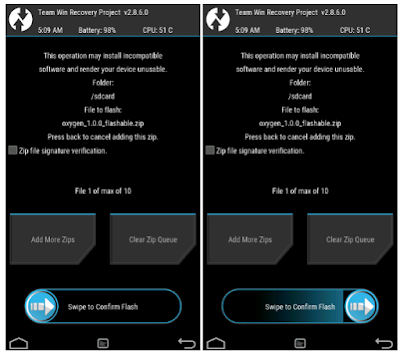
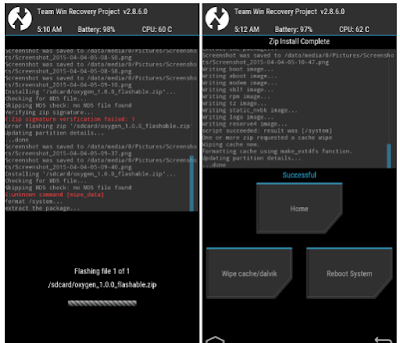
  6. Now confirm the installation by simply swiping the Swipe to Confirm Flash option. You will see the installation will begin.
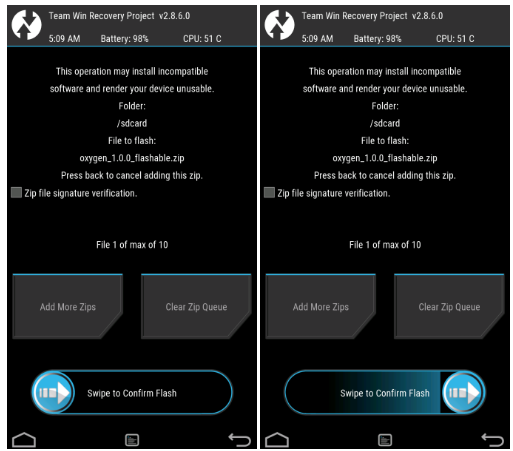
    Swipe To Confirm
  7. Once the installation has been completed then repeat the above action to flash the Gapps.
    TWRP Finished Install
  8. Now you need to tap Wipe cache/dalvik button in case you experience bootloop or other technical problem.
  9. Now you need to tap the Reboot System button.
    TWRP Reboot System
  10. Done.
Congratulation my friend because you have successfully updated your Huawei Nexus 6P to Android 7.1.1 Nougat using the LineageOS Nightly 14.1 ROM. Tell your friend about this news. And as always see you again on my next posts on the Install Android ROMs blog.

Wednesday, 9 November 2016

How To Officially Update Huawei Honor 8 To Android 7 With EMUI 5.0 Beta

Officially update Huawei Honor 8 to Android 7 with EMUI 5.0 Beta. Recently we have received a superb news about the team up between Huawei and XDA- Developers to deliver EMUI 5.0 Beta to Huawei Honor 8. The latest software comes with Android Nougat and now it's opened for any interested Honor 8 users who want to give it a try.
Advertisements.

If you decide not to be a tester, I can understand for the previous experience you might had using the Huawei EMUI that for some reasons slowing down our device and contains too much resources that eat our device memory.

But on this version, Huawei has promised openly that their software is already optimized attentively to which will offer nothing except good and better experiences for the users.

Huawei has adorned their EMUI 5.0 Nougat for Honor 8 with great and neat interface. The blue and white colors are chosen for the Rom, The improvements for the performances are already being optimized. Also all the Android 7 new features such as multiwindow, mobile payments, app usage options, a secure system with user privacy are already included within the ROM. So you can expect something remarkable awesome there guys.
How To Update Huawei Honor 8 To Android 7 With EMUI 5.0 Beta

How to officially update Huawei Honor 8 to Android 7 Nougat EMUI 5.0?


For that you need a download link, to get the link then you are required to fill the provided form. Once you have filled everything then you will be given with a link to download EMUI 5.0 to further install it on your Honor 8.

Preconditions before updating your Huawei Honor 8 to Android 7 Nougat.

  • Make sure you backup your existing Android data. Backup all your precious data. Don't skip this.
  • In case your Huawei Honor 8 is rooted with TWRP recovery installed, then I suggest you to make a Nandroid backup first. So you can restore later. In case everything goes terribly wrong. 
  • To update to this ROM, then your Honor Huawei 8 should not being powered with custom ROM.
  • Make sure you have enough free space to download and install EMUI 5.0 ROM.
Advertisements.

Instructions to update Huawei Honor 8 to Android 7 EMUI 5.0.

  1. Once you have fulfilled all the points from the above preconditions section. Now you need to grab the download link of EMUI 5.0 Beta.
  2. Now head to this page (XDA Beta Test EMUI 5.0 (Nougat) on the Honor 8! (Official)). Then fill all the Google form there. Once you've finished with filling business. You can submit your applications.
  3. En email will be sent to your email inbox that contains a download link along with the needed instructions to install the Android 7 EMUI 5.0 on your Huawei Honor 8 device.
Congratulations because you have successfully updated your Huawei Honor 8 to the official Android 7 Nougat by flashing the EMUI 5.0 ROM.

Sunday, 6 November 2016

How To Install TWRP On Huawei Honor 8 Then Root It

Here you will learn to install TWRP on Huawei Honor 8 and root Huawei Honor 8 device. If you want to have more abilities that are impossibly provided on the default Honor 8 then you are advised to install TWRP recovery then root your Honor 8 to further flashing all the great root apps, mods and kernels.
Advertisements.

Preconditions.

How to install TWRP recovery on Huawei Honor 8

  1. On your computer, head to the folder where you downloaded ADB tools.
  2. Now connect your computer to Huawei Honor 8 using a USB cable.
  3. Inside the folder, press and hold Shift + Right Click on your mouse then select Open Command Prompt Window / CMOD.
  4. You need to type the adb devices -- grant permission on your device then choose the box to always allow debugging from computer.
  5. Now reboot your device to fastboot mode, by typing the adb reboot bootloader command line.
    Install TWRP on Huawei Honor 8 Tutorials
  6. Now confirm to have a connection to PC, type fastboot device.
    Install TWRP Recovery On Huawei Honor 8
  7. Now copy the TWRP.img then paste it to the ADB folder where the CMOD is opened.
  8. Now type the fastboot flash recovery twrp-3.0.2-0-frd-modaco-rc1.img. The flashing processes will begin, just wait now, guys.
    Install TWRP On Any Android
  9. Now normally reboot your device.
  10. Once your device's booted up, then launch the CMD again inside the ADB folder, then execute this command; adb reboot recovery.
    How To Install TWRP Recovery On Huawei Honor 8 Phone
  11. Your device will reboot into the TWRP recovery mode.
  12. Never change the permission to the read/write, instead set it into the read only, then do a backup.
  13. Now make a backup inside the TWRP by choosing backup on the TWRP main menu.
    How To Root Huawei Honor 8
  14. Now check all the boxes there, continue your step with swiping to create a backup.
    How To Install TWRP Recovery On Huawei Honor 8
  15. Once you have done that, enable read/write now.
  16. You can do it by heading to mount, then uncheck the box that says mount system partition to read only.
    Install TWRP On Huawei Honor 8
Advertisements.

How to root Huawei Honor 8 via TWRP

  1. Now you need to install the SuperSU file you downloaded earlier.
  2. On the TWRP main menu, choose Install button, then find the SuperSU file you stored on your device.
    How To Root Huawei Honor 8
  3. Then choose the file.
  4. The installation processes will start.
  5. Once done, you need to reboot your device, using the Reboot System Now option.
Learn to install SuperSU via TWRP recovery to root any Android device.

Well done my friend now your Huawei Honor 8 is powered with TWRP recovery and rooted.