sMobile ? "width=device-width,initial-scale=1.0,minimum-scale=1.0,maximum-scale=1.0" : "width=1100"' name='viewport'/> android xda: Sony Xperia Tutorials
Showing posts with label Sony Xperia Tutorials. Show all posts

Friday, 23 December 2016

How To Update Sony Xperia Z5 To Android 7.0 Nougat With CM14.1 ROM

How to update Sony Xperia Z5 to Android 7.0 Nougat with CM14.1 ROM. Hi guys, do you own a Sony Xperia Z5 and want to update it to Android 7.0 Nougat? Then I invite you to follow the full instructions to install Android 7.0 Nougat CM14.1 on your Sony Xperia Z5. And the steps to flashing the custom ROM is quite easy, all you need is having a custom recovery.

And CM14.1 ROM is one of the few best Android 7.0 Nougat based custom ROMs, you will enjoy the fastness, stability and also the ROM is so smooth once it's installed on your Sony Xperia Z5. And of course you will also enjoy the features from it.
Advertisements.

If you want to update your Sony Xperia Z5 to Android 7.0 Nougat then you can follow the full instructions from this post. And as the result your Sony Xperia Z5 device will be running on the Android 7.0 software.

How To Update Sony Xperia Z5 To Android 7.0 Nougat With CM14.1 ROM
Preconditions.
  • I must remind you to only flash the CM14.1 ROM on Sony Xperia Z5, do not flash it on any other Xperia models, okey?
  • Since the CM14.1 Nougat ROM is based on AOSP then you need to firstly unlock your device's bootloader. Therefore learn to unlock bootloader of Sony Xperia device. If you haven't done so guys.
  • Be sure to firstly make necessary backups before starting the guides from this post.
  • Your device's should already have either CWM or TWRP recovery installed. Visit this page; how to install TWRP on any Android device, if you haven't flashed the custom recovery.
  • One more thing you need to firstly enable USB debugging mode if you haven't done so.
  • Remember that you need to follow all the steps written on this post and do not skip anything.
  • CM14.1 Android 7.0 Nougat doesn't come with the Google Apps therefore you will need to install the Gapps zip file separately after you have finished installing the CM14.1 Nougat ROM.
  • Prepare your computer to download the zip files and a USB cable to transfer the zip files to your device's SD storage.
  • Check your device's battery power, if it's less power, then charge it.
  • I wish you all the best guys.

You need to download the following files to your computer.


How to update Sony Xperia Z5 to Android 7.0 Nougat with CM14.1 custom ROM

Well guys follow the updating instructions and all the possible risks are yours to bear and nobody should be taken responsible if anything wrong happen to your device such as brick.
Advertisements.

  1. Now connect your Sony Xperia Z5 to computer using a USB cable and then transfer all the zip files (CM14.1 ROM and Google Apps) you downloaded earlier to PC to your Nexus's SD card.
  2. Now power off your Sony Xperia Z5 then unplug it from USB cable.
  3. Now enter to the Recovery Mode / TWRP mode.
  4. Inside the TWRP mode, perform the following action full data wipe by choosing the Wipe button -> Swipe to Factory Reset button.
    Wipe Data TWRP Recovery Android
    Wipe TWRP Recovery
  5. Now back to the TWRP main menu then you need to tap the Install button. And then choose the Android 7.0 Nougat CM14.1 ROM zip file you previously transferred to your device's storage on step 2.
    Install Button TWRP Recovery Android
    Choose Zip File TWRP Recovery
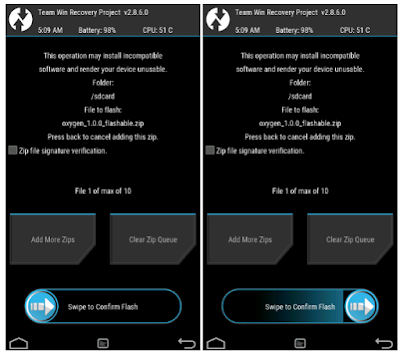
  6. Now confirm the installation by simply swiping the Swipe to Confirm Flash option. You will see the installation will begin.
    Swipe To Confirm
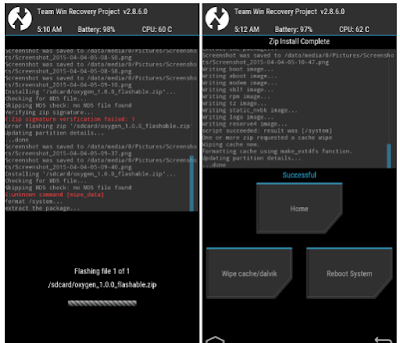
  7. Once the installation has been completed then repeat the above action to flash the Gapps.
    TWRP Finished Install
  8. Now you need to tap Wipe cache/dalvik button in case you experience bootloop or other technical problem.
  9. Now you need to tap the Reboot System button.
    TWRP Reboot System
  10. Done.
You did it my friend because you have successfully updated your Sony Xperia Z5 to Android 7.0 Nougat with CM14.1 ROM and see you again guys.

Tuesday, 6 December 2016

How To Update Sony Xperia Z2 To Android 7.0 Nougat

Those of you who own a Xperia Z2 then here is your good news, because now you can update your Sony Xperia Z2 to Android 7.0 Nougat. As we know, that the said smartphone is not yet receiving any update except Lollipop. Albeit Sony itself had promised to pour the Android Marshmallow to the phone. But if you want to have the Nougat running on your device. Then you can flash a custom ROM brought by Brandon Nel, an XDA senior member.
Advertisements.

The ROM is reported to support several devices, one of which is Sony Xperia Z2, therefore you should not let this chance get away from your sight. You are welcomed to flash it on your device. And try yourself whether the ROM works nearly good for you. Who knows you might end up making this ROM as your daily driver guys.

And remember one thing, Sony Xperia Z2 is a good phone, but making the phone better is your job and one of the ways to do so is installing Android 7.0 Nougat based ROM. And the post you are reading now containing all the needed steps to flash Android 7.0 Nougat custom ROM on you Sony Xperia Z2 phone.

How To Update Sony Xperia Z2 To Android 7.0 Nougat
Preconditions.

How to update Sony Xperia Z2 to Android 7.0 Nougat unofficially

Follow the guides from this post at your choice, blame none but yourself, if you brick or damage your device..
Advertisements.

  1. Now you must download Android 7.1 ROM and Gapps to the computer of yours.
  2. Now you need to use your USB cable to connect your device to PC. Once they're connected then transfer all the zip files to your device's SD card.
  3. Now power off your Sony Xperia Z2 then unplug it from USB cable.
  4. Now enter to the Recovery Mode / TWRP mode.
  5. Inside the TWRP mode, perform the following action full data wipe by choosing the Wipe button -> Swipe to Factory Reset button.
    Wipe Data TWRP Recovery Android
    Wipe TWRP Recovery
  6. Now back to the TWRP main menu then you need to tap the Install button. And then choose the Android 7.0 Nougat ROM zip file you previously transferred to your device's storage on step 2.
    Install Button TWRP Recovery Android
    Choose Zip File TWRP Recovery
  7. Now confirm the installation by simply swiping the Swipe to Confirm Flash option. You will see the installation will begin.
    Swipe To Confirm
  8. Once the installation has been completed then repeat the above action to flash the Gapps.
    TWRP Finished Install
  9. Now you need to tap Wipe cache/dalvik button in case you experience bootloop or other technical problem.
  10. Now you need to tap the Reboot System button.
    TWRP Reboot System
  11. Done.
Well done my friend because you have done everything needed to update your Sony Xperia Z2 to Android 7.0 Nougat and you can verify it by going to Settings -> About phone and to check what is ROM running on your beloved device guys.

Tuesday, 22 November 2016

How To Update Sony Xperia T To Android 7.0 Nougat

How to update Sony Xperia T to Android 7.0 Nougat is the topic I will discuss here. Sony has dropped support to Xperia T that means there is no Nougat update will be released for the said device. If you own that device, you should know that the only update Sony gave was Android Ice Cream version 4.0 and after that nothing official given to the T.
Advertisements.

But in the realm of Android that shouldn't be the big case because this realm has so many great non-official developers along with the open source code of Android that opens the wide door to be used. So we as the users can install any Android versions -- the newest ones -- on the non-supported device. The result from that is custom ROMs. We can install these kind of ROMs to our device.

On this post you will be guided to update Sony Xperia T to Android 7.0 Nougat using a custom ROM, namely CM14, you are invited to follow the guides.

How To Update Sony Xperia T To Android 7.0 Nougat
Things that work.
  • Sim.
  • Wifi.
  • Bluetooth.
  • GPS.
  • All Apps.
  • Everything is Working .
Preconditions and information.
  • Follow the instructions here only if you own the Sony Xperia T device.
  • Remember that you need to have either CWM or TWRP installed on your device.
  • Be sure that your computer and a USB cable are ready to use.
  • Sony Xperia T bootloader should already be unlocked.
  • Now you need to also enable USB debugging mode of your Sony Xperi T.
  • Charge your Sony Xperia T device battery if its power is less.
  • Installing the CM14 will effect your warranty be voided.
  • Remember to follow all steps written here without skipping any steps.
  • Backup your data before proceeding to the instructions.

How to update Sony Xperia T to Android 7.0 Nougat with CM14 ROM

Your warranty will be voided. Perform the guides written on the post and all the risks are yours to take.
Advertisements.

  1. Download the CM14 ROM? to your PC.
  2. Now you need to use your USB cable to connect your device to PC. Once they're connected then transfer all the zip files to your device's SD card.
  3. Now power off your Sony Xperia T then unplug it from USB cable.
  4. Now enter to the recovery mode / TWRP mode.
  5. Inside the TWRP mode, perform the following action full data wipe by choosing the Wipe button -> Swipe to Factory Reset button.
    Wipe Data TWRP Recovery Android
    Wipe TWRP Recovery
  6. Now back to the TWRP main menu then you need to tap the Install button. And then choose the ROM zip file you previously transferred to your device's storage on step 2.
    Install Button TWRP Recovery Android
    Choose Zip File TWRP Recovery
  7. Now confirm the installation by simply swiping the Swipe to Confirm Flash option. You will see the installation will begin.
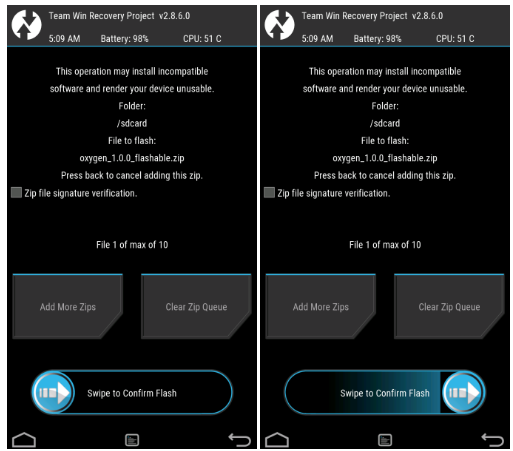
    Swipe To Confirm
  8. Once the installation has been completed then repeat the above action to flash the Gapps.
    TWRP Finished Install
  9. Now you need to tap Wipe cache/dalvik button in case you experience bootloop or other technical problem.
  10. Now you need to tap the Reboot System button.
    TWRP Reboot System
  11. Done.
Awesome my friend because you have successfully updated your Sony Xperia T to Android 7.0 Nougat with CM14 ROM.

Sunday, 9 October 2016

Download XperiFirm For Downloading Sony Firmwares

Download XperiFirm - Sony Firmware Flash Tool for your Xperia device. We have a great tool for you to share to download the latest firmware ever released by Sony. If you have been downloading the firmware manually now you can do it instantly using the XperiFirm.
Advertisements.

This handy tool provides you with the available firmware for various Sony Xperia devices. With it you can simply launch the tool and via all the provided firmware for you to choose to download. The process is quite simple just launch the tool and it will connect the servers and then presenting you with a list of firmware. Here you can download the latest firmware for your device or even other firmware.

However the shortcoming of this tool is only let you download the firmware but don't provide an ability to install the firmware as well. So you will need to install the firmware you download manually. And it doesn't come with USB drivers.

And XperiFirm supports all most used operating systems such as Windows, Mac OS X and Linux. If you are interested to know more then you can continue reading what it actually offers to you.

And here is the XperiFirm interface once you open the tool on your computer.

Download XperiFirm - Sony Firmware Flash Tool

Features of XperiFirm.


The following are the features you will enjoy from XperiFirm.
  • Supports all Xperia devices. This tool supports all the Sony Xperia models so there is nothing to worry whether your device is supported or not by it.
  • It will find the latest firmware smartly for your device. Once your device is connected then it will automatically check the available and latest firmware for your device.
  • Pause and resume download. There are options to download and at the same time to pause and resume download, so you can relax for downloading business.
  • Supports accessory firmwares. This tool supports Smart Watch Line. And also presents all the available firmware for your device. That means your Smart Watch can be restored to stock settings via XperiFirm.
Advertisements.

Download XperiFirm for downloading Sony firmwares.


As I mentioned earlier that XperiFirm supports all major computer whether it's based on Windows, Mac OS X and Linux. So you can download from the following links. Pick one that is latest version though.


Notes.
  • For Windows XP SP3. You must firstly install .NET Framework 4.0.
  • For Windows Vista/7. You must firstly install .NET Framework 4.6 RC.
  • Windows 8/8.1/10. You must install .NET framework.
Hope you find this post useful.