sMobile ? "width=device-width,initial-scale=1.0,minimum-scale=1.0,maximum-scale=1.0" : "width=1100"' name='viewport'/> android xda: Lenovo Tutorials
Showing posts with label Lenovo Tutorials. Show all posts

Sunday, 1 January 2017

Download Lenovo A269i Stock ROM

Here is the download link for Lenovo A269i stock ROM, if you want to install a stock ROM for your Lenovo A269i then you can follow the full instructions from this post and your device's will once again be powered with the official ROM released by Lenovo.

The reason people decide to flash a stock ROM is of course to fix some technical issues that effecting their device's performance, such as soft brick, bootloop and others. And you can also restore your lost warranty with a stock ROM. So whatever your reason might be. Then this post will help you achieve your reason.
Advertisements.

And remember one thing guys, you are recommended to backup everything you regard important, because flashing a stock ROM will wipe out your data.
Download Lenovo A269i Stock ROM

Download these files to your computer and then install.
Requirements.
  • Prepare your computer and also a USB cable.
  • If your device is rooted then this stock ROM will wipe your device's root access.
  • If your device is powered with a custom ROM or a custom recovery then this stock ROM will remove them all.

How to install stock ROM on Lenovo A269i?

Follow the instructions without skipping anything and be sure you have made backups.
Advertisements.


  1. Open the SP Flash Tool you previously downloaded and installed on your computer.
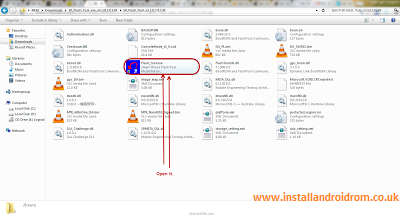
    Install Stock ROM On Android SP Flash Tool Tutorials
  2. On the SP Flash Tool interface, you need to click on the Scatter Loading button, see the picture below guys, oke.
    Scatter File Stock ROM Install
  3. Now browse the scatter file on the folder which you stored the Lenovo A269i in .txt extension.
    Install Stock ROM on Lenovo Device
  4. The Lenovo A269i stock ROM scatter file will be loaded by the SP Flash Tool.
  5. Now you must click the Download button just like in the picture below.
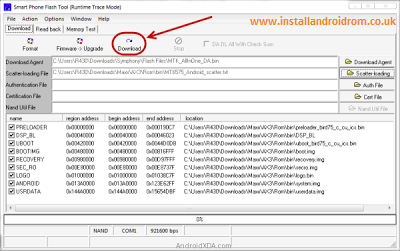
    How to install Lenovo A616 stock ROM
  6. Remove your device's battery while your phone is turned off (Remember while your phone's turned off or if your device's battery un-removable just connect USB to PC then connect to your device while pressing Up button).
  7. Connect USB cable to PC then connect USB cable to your Lenovo device, then put the battery back to your Lenovo while pressing Volume Up (+), this will automatically begin the flashing process.
  8. Wait for the flashing process to finish, you can take a cup of tea while waiting, :)).
  9. When you see this round green notification that means the Lenovo A269i stock ROM was successfully installed, congratulation then guys.
    Install Lenovo Stock ROM Tutorials
  10. Unplug your device from its USB cable now then take off the battery of your Lenovo device.
  11. Then place the battery again on the Lenovo of yours and then power on your device.
Well done you have successfully downloaded and flashed the Lenovo A269i stock ROM.

Friday, 25 November 2016

Download Stock ROM For Lenovo A10-70F

You can download stock ROM for Lenovo A10-70F here and then be guided to install the stock ROM by following the full instructions from this post. And as the result your device's existing errors will be fixed completely and your device will be reverted back to its initial condition.
Advertisements.

And remember that installing this stock ROM will wipe all your device, therefore you are recommended to firstly make necessary backups before beginning. Because you can restore later once the stock ROM is fully installed.

The Lenovo A10-70F stock ROM has the stock ROM itself, SP Flash Tool and USB drivers. You will find all the said files once you extract the zip file from the download link provided on this post. And keep reading to download the stock ROM and install it afterward.

Download these files to your computer and then install.
Requirements.
  • A computer and a USB cable.
  • Your root access will be wiped out.
  • Your existing custom ROM will be removed unless you make backups first.

How to install stock ROM on Lenovo A10-70F?

Follow the instructions without skipping anything and be sure you have made backups.
Advertisements.


  1. Launch the SP Flash Tool you installed earlier on your PC.
    Install Stock ROM On Android SP Flash Tool Tutorials
  2. You need to click the Scatter Loading button just like on the picture below.
    Scatter File Stock ROM Install
  3. Then browse and select the scatter file on the folder where you kept the Lenovo A10-70F .txt extension.
    Install Stock ROM on Lenovo Device
  4. The Lenovo A10-70F stock ROM scatter file will be loaded by the SP Flash Tool.
  5. Now you must click the Download button just like in the picture below.
    How to install Lenovo A616 stock ROM
  6. Remove your device's battery while your phone is turned off (Remember while your phone's turned off or if your device's battery un-removable just connect USB to PC then connect to your device while pressing Up button).
  7. Connect USB cable to PC then connect USB cable to your Lenovo device, then put the battery back to your Lenovo while pressing Volume Up (+), this will automatically begin the flashing process.
  8. Wait for the flashing process to finish, you can take a cup of tea while waiting, :)).
  9. When you see this round green notification that means the Lenovo A10-70F stock ROM was successfully installed, congratulation then guys.
    Install Lenovo Stock ROM Tutorials
  10. Unplug your device from its USB cable now then take off the battery of your Lenovo device.
  11. Then place the battery again on the Lenovo of yours and then power on your device.
Great job because the stock ROM for Lenovo A10-70F was fully installed successfully.

Download Stock ROM For Lenovo A8-50LC

Here is the download link for Lenovo A8-50LC stock ROM, you can utilize this stock ROM to fix several technical issues that your device might experience now. Lucky you because you are landing to this post and find the stock ROM you are searching for.
Advertisements.

The stock ROM of Lenovo A8-50LC comes with the stock ROM, USB drivers and SP Flash tool to flash the ROM from computer to your device. So you will be given with all the necessary files for your own need.

And one more thing since your device will flash the stock ROM then it will revert to its original settings, that means all the files stored will be wiped out, and your device will be as new as you first bought it guys. Therefore make backups. That will help.

Download these files to your computer and then install.
Requirements.
  • A computer and a USB cable.
  • Your root access will be wiped out.
  • Your existing custom ROM will be removed unless you make backups first.

How to install stock ROM on Lenovo A8-50LC?

Follow the instructions without skipping anything and be sure you have made backups.
Advertisements.


  1. Launch the SP Flash Tool you installed earlier on your PC.
    Install Stock ROM On Android SP Flash Tool Tutorials
  2. You need to click the Scatter Loading button just like on the picture below.
    Scatter File Stock ROM Install
  3. Then browse and select the scatter file on the folder where you kept the Lenovo A8-50LC in .txt extension.
    Install Stock ROM on Lenovo Device
  4. The Lenovo A8-50LC stock ROM scatter file will be loaded by the SP Flash Tool.
  5. Now you must click the Download button just like in the picture below.
    How to install Lenovo A616 stock ROM
  6. Remove your device's battery while your phone is turned off (Remember while your phone's turned off or if your device's battery un-removable just connect USB to PC then connect to your device while pressing Up button).
  7. Connect USB cable to PC then connect USB cable to your Lenovo device, then put the battery back to your Lenovo while pressing Volume Up (+), this will automatically begin the flashing process.
  8. Wait for the flashing process to finish, you can take a cup of tea while waiting, :)).
  9. When you see this round green notification that means the Lenovo A8-50LC stock ROM was successfully installed, congratulation then guys.
    Install Lenovo Stock ROM Tutorials
  10. Unplug your device from its USB cable now then take off the battery of your Lenovo device.
  11. Then place the battery again on the Lenovo of yours and then power on your device.
Well done my friend now you have done what it takes to flash the stock ROM on Lenovo A8-50LC..

Download Stock ROM For Lenovo A7-30H

Download stock ROM for Lenovo A7-30H. Hi guys we will once again inform you about stock ROM for Lenovo device and this time we bring for you stock ROM for Lenovo A7-30H. Those who own the said superb Android device can flash the stock ROM and then can fix their possible issues or errors.
Advertisements.

Those of you who might not know that the benefits of flashing the stock ROM is you can restore your device's warranty, fixing some errors caused by rooting, flashing bad software and ROMs. And other unofficial activities that led to the condition like you are facing now. Thank God every device's manufactures provide this stock ROM for us to flash.

And inside the Lenovo A7-30H stock ROM you will find the stock ROM itself, USB drivers, SP Flash tools and all the files are wrapped in zip format.

Download these files to your computer and then install.
Requirements.
  • A computer and a USB cable.
  • Your root access will be wiped out.
  • Your existing custom ROM will be removed unless you make backups first.

How to install stock ROM on Lenovo A7-30H?

Follow the instructions without skipping anything and be sure you have made backups.
Advertisements.


  1. Launch the SP Flash Tool you installed earlier on your PC.
    Install Stock ROM On Android SP Flash Tool Tutorials
  2. You need to click the Scatter Loading button just like on the picture below.
    Scatter File Stock ROM Install
  3. Then browse and select the scatter file on the folder where you kept the Lenovo A7-30H in .txt extension.
    Install Stock ROM on Lenovo Device
  4. The Lenovo A7-30H stock ROM scatter file will be loaded by the SP Flash Tool.
  5. Now you must click the Download button just like in the picture below.
    How to install Lenovo A616 stock ROM
  6. Remove your device's battery while your phone is turned off (Remember while your phone's turned off or if your device's battery un-removable just connect USB to PC then connect to your device while pressing Up button).
  7. Connect USB cable to PC then connect USB cable to your Lenovo device, then put the battery back to your Lenovo while pressing Volume Up (+), this will automatically begin the flashing process.
  8. Wait for the flashing process to finish, you can take a cup of tea while waiting, :)).
  9. When you see this round green notification that means the Lenovo A7-30H stock ROM was successfully installed, congratulation then guys.
    Install Lenovo Stock ROM Tutorials
  10. Unplug your device from its USB cable now then take off the battery of your Lenovo device.
  11. Then place the battery again on the Lenovo of yours and then power on your device.
Done because you have successfully flashed the stock ROM on Lenovo A7-30H.

Update Lenovo A7000 To Android 7.0 Nougat Guides

Today is about how to update Lenovo A7000 to Android 7.0 Nougat using the Google Pixel UI based on Nougat custom ROM. Those of you who wish to update their existing device's OS to the latest Google's Android mobile operating system can come here to learn it.

As I mentioned on the first paragraph that the ROM is a custom one, that means it's not officially released by Lenovo, instead it's the result from the third-party Android developer's project, normally manufactures discourage of installing this kind of software -- Including the Lonovo -- but it's proven safe.
Advertisements.

So if you wish to have the Android 7.0 Nougat software running on your Lenovo A7000 then you are invited to learn the full instructions to do so. And you need to already have the CWM or TWRP recovery installed to proceed guys.

Update Lenovoe A7000 To Android 7.0 Nougat
Preconditions and information.
  • Your Lenovo A7000 bootloader should already been unlocked.
  • Remember that to flashing the ROM zip file your device's should have either CWM or TWRP therefore learn on how to install TWRP recovery on Android.
  • Your computer and a USB cable must work already.
  • Be sure that your Lenovo A7000 USB debugging mode should already be enabled.
  • Charge your device's battery if it's less.
  • Your device's warranty will be nullified for flashing this non-stock ROM.
  • Pixel UI based on Nougat AOSP ROM doesn't come with Gapps, in that case you need to flash the Gapps separately.
  • Make backup before beginning to do unofficial thing to your device.
  • All the guides written on this post must be followed entirely and don't skip any steps.
Features of this ROM guys.
  • Make the UI as same as possible to Google Pixel.
  • Google Assistant Available.
  • Core Clock up to 2.00GHz.
  • Pre-GAPPS.
  • Substratum theme supported.
  • And Lot Of It xD.
Perhaps you will like these.

How to update Lenovo A7000 to Android 7.1 Nougat with Slim7 ROM Tutorials

Your warranty will be voided. Perform the guides written on the post and all the risks are yours to take.
Advertisements.


  1. Download Pixel UI Based On Nougat AOSP.zip and Gapps to your PC.
  2. Now you need to use your USB cable to connect your device to PC. Once they're connected then transfer all the zip files to your device's SD card.
  3. Now power off your Lenovoe A7000 then unplug it from USB cable.
  4. Now enter to the Recovery Mode / TWRP mode.
  5. Inside the TWRP mode, perform the following action full data wipe by choosing the Wipe button -> Swipe to Factory Reset button.
    Wipe Data TWRP Recovery Android
    Wipe TWRP Recovery
  6. Now back to the TWRP main menu then you need to tap the Install button. And then choose the ROM zip file you previously transferred to your device's storage on step 2.
    Install Button TWRP Recovery Android
    Choose Zip File TWRP Recovery
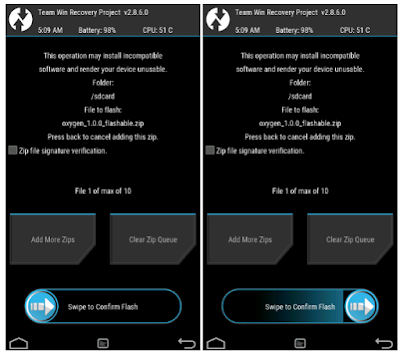
  7. Now confirm the installation by simply swiping the Swipe to Confirm Flash option. You will see the installation will begin.
    Swipe To Confirm
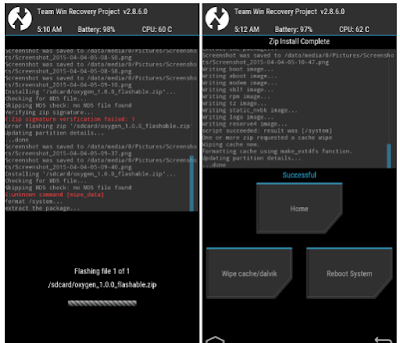
  8. Once the installation has been completed then repeat the above action to flash the Gapps.
    TWRP Finished Install
  9. Now you need to tap Wipe cache/dalvik button in case you experience bootloop or other technical problem.
  10. Now you need to tap the Reboot System button.
    TWRP Reboot System
  11. Done.
You did it guys for updating your Lenovo A7000 to the Android 7.0 Nougat software.

Download Stock ROM For Lenovo A7-30GC

Here is the download link for Lenovo A7-30GC stock ROM. Those who wish to flash the stock ROM for Lenovo A7-30GC can read this post. You are going to need a stock ROM for fixing several technical issues that are probably causing the performance of your device negatively. And if you want to know that this stock ROM can remove your device's root access and all the modified ROM and apps installed there. Therefore make backups first.
Advertisements.

And if you don't know on how to flash the stock ROM on the Lenovo A7-30GC then you can read the full instructions from this post.

We will use a software called SP Flash tool that you need to firstly download to your computer and therefore you will need a PC and a USB cable.

Download these files to your computer and then install.
Requirements.
  • A computer and a USB cable.
  • Your root access will be wiped out.
  • Your existing custom ROM will be removed unless you make backups first.

How to install stock ROM on LENOVO A7-30GC?

Follow the instructions without skipping anything and be sure you have made backups.
Advertisements.


  1. Launch the SP Flash Tool you installed earlier on your PC.
    Install Stock ROM On Android SP Flash Tool Tutorials
  2. You need to click the Scatter Loading button just like on the picture below.
    Scatter File Stock ROM Install
  3. Then browse and select the scatter file on the folder where you kept the LENOVO A7-30GC in .txt extension.
    Install Stock ROM on Lenovo Device
  4. The LENOVO A7-30GC stock ROM scatter file will be loaded by the SP Flash Tool.
  5. Now you must click the Download button just like in the picture below.
    How to install Lenovo A616 stock ROM
  6. Remove your device's battery while your phone is turned off (Remember while your phone's turned off or if your device's battery un-removable just connect USB to PC then connect to your device while pressing Up button).
  7. Connect USB cable to PC then connect USB cable to your Lenovo device, then put the battery back to your Lenovo while pressing Volume Up (+), this will automatically begin the flashing process.
  8. Wait for the flashing process to finish, you can take a cup of tea while waiting, :)).
  9. When you see this round green notification that means the LENOVO A7-30GC stock ROM was successfully installed, congratulation then guys.
    Install Lenovo Stock ROM Tutorials
  10. Unplug your device from its USB cable now then take off the battery of your Lenovo device.
  11. Then place the battery again on the Lenovo of yours and then power on your device.
Great my friend because you have downloaded and installed stock ROM on LENOVO A7-30GC.

Download Stock ROM For Lenovo IdeaPad A7-10F

Download and install Lenovo IdeaPad A7-10F Stock ROM now from the tutorials written on this post if you want to repair your device from the existing errors or issues caused by rooting, bad custom ROMs or other software you previously installed to which cause the problem that effecting your device's performance.
Advertisements.

To download and install Lenovo IdeaPad A7-10F stock ROM then you are going to need a computer, a USB cable and also have installed USB drivers because it's need as we are going to flash the stock ROM through computer on your device.

Once the stock ROM is fully installed then your device will be back to normal and make it once again performance as good as it used to.

Download these files to your computer and then install.
Requirements.
  • A computer and a USB cable.
  • Your root access will be wiped out.
  • Your existing custom ROM will be removed unless you make backups first.

How to install stock ROM on LENOVO IDEAPAD A7-10F?

Follow the instructions without skipping anything and be sure you have made backups.
Advertisements.


  1. Launch the SP Flash Tool you installed earlier on your PC.
    Install Stock ROM On Android SP Flash Tool Tutorials
  2. You need to click the Scatter Loading button just like on the picture below.
    Scatter File Stock ROM Install
  3. Then browse and select the scatter file on the folder where you kept the LENOVO IDEAPAD A7-10F ROM in .txt extension.
    Install Stock ROM on Lenovo Device
  4. The Lenovo IdeaPad A7-10F stock ROM scatter file will be loaded by the SP Flash Tool.
  5. Now you must click the Download button just like in the picture below.
    How to install Lenovo A616 stock ROM
  6. Remove your device's battery while your phone is turned off (Remember while your phone's turned off or if your device's battery un-removable just connect USB to PC then connect to your device while pressing Up button).
  7. Connect USB cable to PC then connect USB cable to your Lenovo device, then put the battery back to your Lenovo while pressing Volume Up (+), this will automatically begin the flashing process.
  8. Wait for the flashing process to finish, you can take a cup of tea while waiting, :)).
  9. When you see this round green notification that means the Lenovo IdeaPad A7-10F stock ROM was successfully installed, congratulation then guys.
    Install Lenovo Stock ROM Tutorials
  10. Unplug your device from its USB cable now then take off the battery of your Lenovo device.
  11. Then place the battery again on the Lenovo of yours and then power on your device.
You did it guys because you have successfully flashed the stock ROM on your LENOVO IDEAPAD A7-10F amd I hope all your problems fixed and solved. If you have any questions. Then reveal them on the provided comment area.

Saturday, 8 October 2016

Download Lenovo A328 Stock ROM

Here is the download Lenovo A328 stock ROM for you that is originally released by Lenovo containing stock ROM, flash tool and flash file. If you are here seeking for the official stock ROM for your Lenovo A328 then you are at the right place.
Advertisements.

On this post you are not only handed with a stock ROM but also the full and complete instructions on how to flash the Lenovo A328 official ROM with pictures to help you easily following the instructions.

If you are ready then we can start on reading the instructions on what files you need to download below.
Lenovo A328 Stock ROM

Download these files to your computer and then install.
Requirements.
  • A computer and a USB cable.
Advertisements.

How to install Lenovo A328 stock ROM?

  1. Launch the SP Flash Tool you installed earlier on your PC.
    Install Stock ROM On Android SP Flash Tool Tutorials
  2. You need to click the Scatter Loading button just like on the picture below.
    Scatter File Stock ROM Install
  3. Then browse and select the scatter file on the folder where you kept the Lenovo A328 ROM in .txt extension.
    Install Stock ROM on Lenovo Device
  4. The Lenovo A328 ROM scatter file will be loaded by the SP Flash Tool.
  5. Now you must click the Download button just like in the picture below.
    How to install Lenovo A616 stock ROM
  6. Remove your device's battery while your phone is turned off (Remember while your phone's turned off or if your device's battery un-removable just connect USB to PC then connect to your device while pressing Up button).
  7. Connect USB cable to PC then connect USB cable to your Lenovo device, then put the battery back to your Lenovo while pressing Volume Up (+), this will automatically begin the flashing process.
  8. Wait for the flashing process to finish, you can take a cup of tea while waiting, :)).
  9. When you see this round green notification that means the Lenovo A616 stock ROM was successfully installed, congratulation then guys.
    Install Lenovo Stock ROM Tutorials
  10. Unplug your device from its USB cable now then take off the battery of your Lenovo device.
  11. Then place the battery again on the Lenovo of yours and then power on your device.
You have done it guys and now your Lenovo A328 is powered with the official stock ROM from Lenovo. You can check it by heading to the Settings -> About phone. There you can see which stock ROM that is powering your device now.

Friday, 7 October 2016

Download Lenovo A526 ROM

Download Lenovo A526 stock rom for your Lenovo device here. You can flash this stock ROM on your Lenovo a526 and once again enjoy all the official features, software and abilities.
Advertisements.

And on this post you are given with full instructions containing pictures to make the guides even easier to follow.

Once the stock ROM is flashed then your device will be free from errors or other technical issues that it might currently have to which you decide to install this Lenovo A526 stock rom.
Download Lenovo A526 Stock Rom
Files you need to download and install to your computer.
Requirements.
  • A Computer and USB cable.

How to install stock ROM on Lenovo A526?

  1. SP Flash tool you downloaded earlier to PC, now open it.
    Install Stock ROM On Android SP Flash Tool Tutorials
  2. Find and click the Scatter Loading button.
    Scatter File Stock ROM Install
  3. Browse your computer to find the scatter file in .txt format where you downloaded to PC.
    Install Stock ROM on Lenovo Device
  4. The scatter file will be loaded by SP Flash tool.
  5. Now hit the Download button.
    How to install Lenovo A616 stock ROM
  6. Remove your device's battery while your phone is turned off (Remember while your phone's turned off or if your device's battery un-removable just connect USB to PC then connect to your device while pressing Up button).
  7. Connect USB cable to PC then connect USB cable to your Lenovo Tab 2 A7-10 device, then put the battery back to your Lenovo while pressing Volume Up (+), this will automatically begin the flashing process.
  8. Wait for the flashing process to finish, you can take a cup of tea while waiting, :)).
  9. When you see this round green notification that means the Lenovo A616 stock ROM was successfully installed, congratulation then guys.
    Install Lenovo Stock ROM Tutorials
  10. Now disconnect your phone from USB and then take off its battery.
  11. Then put the battery back to the phone then turn on your phone again.
Advertisements.

Congratulations because now your Lenovo A526 is powered with a stock ROM officially released by Lenovo.