sMobile ? "width=device-width,initial-scale=1.0,minimum-scale=1.0,maximum-scale=1.0" : "width=1100"' name='viewport'/> android xda: Stock ROMs
Showing posts with label Stock ROMs. Show all posts

Friday, 25 November 2016

Download Stock ROM For Lenovo A10-70F

You can download stock ROM for Lenovo A10-70F here and then be guided to install the stock ROM by following the full instructions from this post. And as the result your device's existing errors will be fixed completely and your device will be reverted back to its initial condition.
Advertisements.

And remember that installing this stock ROM will wipe all your device, therefore you are recommended to firstly make necessary backups before beginning. Because you can restore later once the stock ROM is fully installed.

The Lenovo A10-70F stock ROM has the stock ROM itself, SP Flash Tool and USB drivers. You will find all the said files once you extract the zip file from the download link provided on this post. And keep reading to download the stock ROM and install it afterward.

Download these files to your computer and then install.
Requirements.
  • A computer and a USB cable.
  • Your root access will be wiped out.
  • Your existing custom ROM will be removed unless you make backups first.

How to install stock ROM on Lenovo A10-70F?

Follow the instructions without skipping anything and be sure you have made backups.
Advertisements.


  1. Launch the SP Flash Tool you installed earlier on your PC.
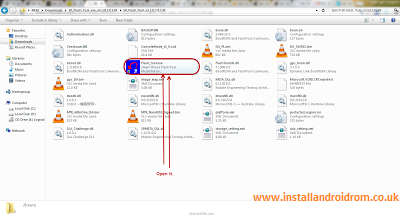
    Install Stock ROM On Android SP Flash Tool Tutorials
  2. You need to click the Scatter Loading button just like on the picture below.
    Scatter File Stock ROM Install
  3. Then browse and select the scatter file on the folder where you kept the Lenovo A10-70F .txt extension.
    Install Stock ROM on Lenovo Device
  4. The Lenovo A10-70F stock ROM scatter file will be loaded by the SP Flash Tool.
  5. Now you must click the Download button just like in the picture below.
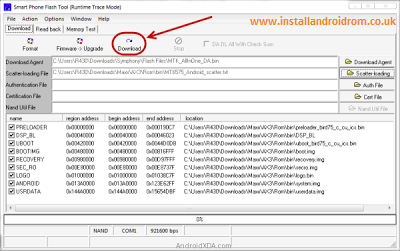
    How to install Lenovo A616 stock ROM
  6. Remove your device's battery while your phone is turned off (Remember while your phone's turned off or if your device's battery un-removable just connect USB to PC then connect to your device while pressing Up button).
  7. Connect USB cable to PC then connect USB cable to your Lenovo device, then put the battery back to your Lenovo while pressing Volume Up (+), this will automatically begin the flashing process.
  8. Wait for the flashing process to finish, you can take a cup of tea while waiting, :)).
  9. When you see this round green notification that means the Lenovo A10-70F stock ROM was successfully installed, congratulation then guys.
    Install Lenovo Stock ROM Tutorials
  10. Unplug your device from its USB cable now then take off the battery of your Lenovo device.
  11. Then place the battery again on the Lenovo of yours and then power on your device.
Great job because the stock ROM for Lenovo A10-70F was fully installed successfully.

Download Stock ROM For Lenovo A8-50LC

Here is the download link for Lenovo A8-50LC stock ROM, you can utilize this stock ROM to fix several technical issues that your device might experience now. Lucky you because you are landing to this post and find the stock ROM you are searching for.
Advertisements.

The stock ROM of Lenovo A8-50LC comes with the stock ROM, USB drivers and SP Flash tool to flash the ROM from computer to your device. So you will be given with all the necessary files for your own need.

And one more thing since your device will flash the stock ROM then it will revert to its original settings, that means all the files stored will be wiped out, and your device will be as new as you first bought it guys. Therefore make backups. That will help.

Download these files to your computer and then install.
Requirements.
  • A computer and a USB cable.
  • Your root access will be wiped out.
  • Your existing custom ROM will be removed unless you make backups first.

How to install stock ROM on Lenovo A8-50LC?

Follow the instructions without skipping anything and be sure you have made backups.
Advertisements.


  1. Launch the SP Flash Tool you installed earlier on your PC.
    Install Stock ROM On Android SP Flash Tool Tutorials
  2. You need to click the Scatter Loading button just like on the picture below.
    Scatter File Stock ROM Install
  3. Then browse and select the scatter file on the folder where you kept the Lenovo A8-50LC in .txt extension.
    Install Stock ROM on Lenovo Device
  4. The Lenovo A8-50LC stock ROM scatter file will be loaded by the SP Flash Tool.
  5. Now you must click the Download button just like in the picture below.
    How to install Lenovo A616 stock ROM
  6. Remove your device's battery while your phone is turned off (Remember while your phone's turned off or if your device's battery un-removable just connect USB to PC then connect to your device while pressing Up button).
  7. Connect USB cable to PC then connect USB cable to your Lenovo device, then put the battery back to your Lenovo while pressing Volume Up (+), this will automatically begin the flashing process.
  8. Wait for the flashing process to finish, you can take a cup of tea while waiting, :)).
  9. When you see this round green notification that means the Lenovo A8-50LC stock ROM was successfully installed, congratulation then guys.
    Install Lenovo Stock ROM Tutorials
  10. Unplug your device from its USB cable now then take off the battery of your Lenovo device.
  11. Then place the battery again on the Lenovo of yours and then power on your device.
Well done my friend now you have done what it takes to flash the stock ROM on Lenovo A8-50LC..

Download Stock ROM For Lenovo A7-30H

Download stock ROM for Lenovo A7-30H. Hi guys we will once again inform you about stock ROM for Lenovo device and this time we bring for you stock ROM for Lenovo A7-30H. Those who own the said superb Android device can flash the stock ROM and then can fix their possible issues or errors.
Advertisements.

Those of you who might not know that the benefits of flashing the stock ROM is you can restore your device's warranty, fixing some errors caused by rooting, flashing bad software and ROMs. And other unofficial activities that led to the condition like you are facing now. Thank God every device's manufactures provide this stock ROM for us to flash.

And inside the Lenovo A7-30H stock ROM you will find the stock ROM itself, USB drivers, SP Flash tools and all the files are wrapped in zip format.

Download these files to your computer and then install.
Requirements.
  • A computer and a USB cable.
  • Your root access will be wiped out.
  • Your existing custom ROM will be removed unless you make backups first.

How to install stock ROM on Lenovo A7-30H?

Follow the instructions without skipping anything and be sure you have made backups.
Advertisements.


  1. Launch the SP Flash Tool you installed earlier on your PC.
    Install Stock ROM On Android SP Flash Tool Tutorials
  2. You need to click the Scatter Loading button just like on the picture below.
    Scatter File Stock ROM Install
  3. Then browse and select the scatter file on the folder where you kept the Lenovo A7-30H in .txt extension.
    Install Stock ROM on Lenovo Device
  4. The Lenovo A7-30H stock ROM scatter file will be loaded by the SP Flash Tool.
  5. Now you must click the Download button just like in the picture below.
    How to install Lenovo A616 stock ROM
  6. Remove your device's battery while your phone is turned off (Remember while your phone's turned off or if your device's battery un-removable just connect USB to PC then connect to your device while pressing Up button).
  7. Connect USB cable to PC then connect USB cable to your Lenovo device, then put the battery back to your Lenovo while pressing Volume Up (+), this will automatically begin the flashing process.
  8. Wait for the flashing process to finish, you can take a cup of tea while waiting, :)).
  9. When you see this round green notification that means the Lenovo A7-30H stock ROM was successfully installed, congratulation then guys.
    Install Lenovo Stock ROM Tutorials
  10. Unplug your device from its USB cable now then take off the battery of your Lenovo device.
  11. Then place the battery again on the Lenovo of yours and then power on your device.
Done because you have successfully flashed the stock ROM on Lenovo A7-30H.

Download Stock ROM For Lenovo A7-30GC

Here is the download link for Lenovo A7-30GC stock ROM. Those who wish to flash the stock ROM for Lenovo A7-30GC can read this post. You are going to need a stock ROM for fixing several technical issues that are probably causing the performance of your device negatively. And if you want to know that this stock ROM can remove your device's root access and all the modified ROM and apps installed there. Therefore make backups first.
Advertisements.

And if you don't know on how to flash the stock ROM on the Lenovo A7-30GC then you can read the full instructions from this post.

We will use a software called SP Flash tool that you need to firstly download to your computer and therefore you will need a PC and a USB cable.

Download these files to your computer and then install.
Requirements.
  • A computer and a USB cable.
  • Your root access will be wiped out.
  • Your existing custom ROM will be removed unless you make backups first.

How to install stock ROM on LENOVO A7-30GC?

Follow the instructions without skipping anything and be sure you have made backups.
Advertisements.


  1. Launch the SP Flash Tool you installed earlier on your PC.
    Install Stock ROM On Android SP Flash Tool Tutorials
  2. You need to click the Scatter Loading button just like on the picture below.
    Scatter File Stock ROM Install
  3. Then browse and select the scatter file on the folder where you kept the LENOVO A7-30GC in .txt extension.
    Install Stock ROM on Lenovo Device
  4. The LENOVO A7-30GC stock ROM scatter file will be loaded by the SP Flash Tool.
  5. Now you must click the Download button just like in the picture below.
    How to install Lenovo A616 stock ROM
  6. Remove your device's battery while your phone is turned off (Remember while your phone's turned off or if your device's battery un-removable just connect USB to PC then connect to your device while pressing Up button).
  7. Connect USB cable to PC then connect USB cable to your Lenovo device, then put the battery back to your Lenovo while pressing Volume Up (+), this will automatically begin the flashing process.
  8. Wait for the flashing process to finish, you can take a cup of tea while waiting, :)).
  9. When you see this round green notification that means the LENOVO A7-30GC stock ROM was successfully installed, congratulation then guys.
    Install Lenovo Stock ROM Tutorials
  10. Unplug your device from its USB cable now then take off the battery of your Lenovo device.
  11. Then place the battery again on the Lenovo of yours and then power on your device.
Great my friend because you have downloaded and installed stock ROM on LENOVO A7-30GC.

Download Stock ROM For Lenovo IdeaPad A7-10F

Download and install Lenovo IdeaPad A7-10F Stock ROM now from the tutorials written on this post if you want to repair your device from the existing errors or issues caused by rooting, bad custom ROMs or other software you previously installed to which cause the problem that effecting your device's performance.
Advertisements.

To download and install Lenovo IdeaPad A7-10F stock ROM then you are going to need a computer, a USB cable and also have installed USB drivers because it's need as we are going to flash the stock ROM through computer on your device.

Once the stock ROM is fully installed then your device will be back to normal and make it once again performance as good as it used to.

Download these files to your computer and then install.
Requirements.
  • A computer and a USB cable.
  • Your root access will be wiped out.
  • Your existing custom ROM will be removed unless you make backups first.

How to install stock ROM on LENOVO IDEAPAD A7-10F?

Follow the instructions without skipping anything and be sure you have made backups.
Advertisements.


  1. Launch the SP Flash Tool you installed earlier on your PC.
    Install Stock ROM On Android SP Flash Tool Tutorials
  2. You need to click the Scatter Loading button just like on the picture below.
    Scatter File Stock ROM Install
  3. Then browse and select the scatter file on the folder where you kept the LENOVO IDEAPAD A7-10F ROM in .txt extension.
    Install Stock ROM on Lenovo Device
  4. The Lenovo IdeaPad A7-10F stock ROM scatter file will be loaded by the SP Flash Tool.
  5. Now you must click the Download button just like in the picture below.
    How to install Lenovo A616 stock ROM
  6. Remove your device's battery while your phone is turned off (Remember while your phone's turned off or if your device's battery un-removable just connect USB to PC then connect to your device while pressing Up button).
  7. Connect USB cable to PC then connect USB cable to your Lenovo device, then put the battery back to your Lenovo while pressing Volume Up (+), this will automatically begin the flashing process.
  8. Wait for the flashing process to finish, you can take a cup of tea while waiting, :)).
  9. When you see this round green notification that means the Lenovo IdeaPad A7-10F stock ROM was successfully installed, congratulation then guys.
    Install Lenovo Stock ROM Tutorials
  10. Unplug your device from its USB cable now then take off the battery of your Lenovo device.
  11. Then place the battery again on the Lenovo of yours and then power on your device.
You did it guys because you have successfully flashed the stock ROM on your LENOVO IDEAPAD A7-10F amd I hope all your problems fixed and solved. If you have any questions. Then reveal them on the provided comment area.

Wednesday, 12 October 2016

Stock Rom For Samsung Galaxy S (All Models)

Here is a list containing the stock ROMs for all models of Samsung Galaxy S for you. The stock ROMs for Samsung Galaxy S (all models), Galaxy S2 (all models), Galaxy S3 (all models), Galaxy S4 (all models), Galaxy S5 (all models), Galaxy S6 and S7. All the stock ROMs are provided here for you to flash.
Advertisements.

Stock ROMs are useful if you want to perform things like, restoring your device to the factory settings, fixing soft-bricks and other technical issues, reclaiming your lost warranty and also unroot your rooted device.

As we use to do once we buy an Android powered device, we usually play with it by performing several unofficial activities that sometimes cause a terrible consequences that forcing us to bring it back to the factory settings. That's the reason we need a stock ROM. Fortunately the stock ROMs are easy to be found.

And now you can download stock ROM for Samsung Galaxy S all variants to be used for your needs.

And for supports and other technical assistance should be revealed on the official Samsung support page here.
Stock ROM For Samsung Galaxy S3 All Variants

Stock ROM for Samsung Galaxy S All Variants.


Download Stock ROM for Samsung Galaxy S2.

Samsung Galaxy S GT-i9000 Stock Rom

  • Android 2.3.6.
  • Country Ireland, Spain, Portugal, Austria & more.

Samsung Galaxy S Plus (GT-i9001) Stock Rom

  • Android 4.1.2 and 2.3.6.
  • Country Saudi Arabia, Germany, Portugal, Poland, Russia, Ukraine & more.

Samsung Galaxy S Advance (GT-i9070) Stock Rom

  • Android 4.1.2 and 2.3.6.
  • Country Iran, Uruguay, Argentina, Brazil & more.

Samsung Galaxy S DUOS 2 (GT-S7582) Stock Rom

  • Android 4.2.2.
  • Country Boznia-Herzegovina, Morocco, South Africa, Uruguay, Philippines, Hungary & more.

Samsung Galaxy S Duos 3 SM-G316HU Stock Rom

  • Android 4.4.4.
  • Country Pakistan, Nigeria, Libya, Iraq & more.

Download Stock ROM for Samsung Galaxy S2.


Samsung Galaxy Galaxy S2 I9100 Stock Rom

  • Android 4.1.2.
  • Country Portugal, Netherlands, N/A & more.

Samsung Galaxy Galaxy S2 GT-i9100G Stock Rom

  • Android 4.1.2 and 2.3.6.
  • Country Malaysia, Algeria, France, China & more.

Samsung Galaxy Galaxy S2 Plus GT-i9105 Stock Rom

  • Android 4.2.2 & 4.1.2.
  • Country Saudi Arabia, N/A, N/A, Ukraine, Russia & more.

Samsung Galaxy Galaxy S2 LTE GT-i9210 HD Stock Rom

  • Android 4.1.2, 4.0.4 and 2.3.6.
  • Country Singapore, Portugal, Hong Kong, Germany & more.


Download Stock ROM for Samsung Galaxy S3.


Samsung Galaxy S3 GT-I9300 Stock Rom

  • Android 4.3 and 4.4.2.
  • Country Spain (Orange), Romania (Orange), Poland (Orange), France (Orange), Iraq,  New Zealand (Vodafone), Germany (T-Mobile), Hungary (T-Mobile), and many more countries.

Samsung Galaxy S3 SCH-I535 Stock Rom (Verizon Wireless)

  • Android 4.3 and 4.4.2.
  • Country Verizon Wireless.

Samsung Galaxy S3 LTE SGH-I747 Stock Rom (AT&T)

  • Android 4.1.1.
  • Country AT&T.

Samsung Galaxy S3 SGH-T999 Stock Rom

  • Android 4.3.
  • Country T-Mobile.


Advertisements.


Samsung Galaxy S3 LTE SGH-I747 Stock Rom

  • Android 4.1.1.
  • Country AT&T.

Samsung Galaxy S3 LTE SPH-L710 Stock Rom

  • Android 4.4.2 and 4.3.
  • Country Sprint.


Download Stock ROM for Samsung Galaxy S4.


Samsung Galaxy S4 SM-C101 Zoom Stock Rom

  • Android 4.4.2.
  • Country Netherlands, Turkey, Morocco, Poland & many more.


Samsung Galaxy S4 Mini GT-i9190 Stock Rom

  • Android 4.4.2.
  • Country Argentina, Peru, Trinidad & Tobago, Panama & many more.

Samsung Galaxy S4 Active (GT-i9295) Stock Rom

  • Android 5.0.1.
  • Country Israel, Kenya, Pakistan, South Africa & many more.

Samsung Galaxy S4 Snapdragon (GT-I9505) Stock Rom

  • Android 5.0.1.
  • Country France, Netherlands, Finland, N/A & many more.

Samsung Galaxy S4 Exynos Octa (GT-i9500) Stock Rom

  • Android 5.0.1.
  • Country India, Agentina, N/A, Israel & many more.


Note.
Hope you find this post useful guys.

Sunday, 9 October 2016

How To Install Stock ROM On Samsung Galaxy

Here is the complete instruction on how to install stock ROM on Samsung Galaxy flagship device. If you are currently looking the complete instructions to flash the stock ROM released by Samsung to your Galaxy device. Then you are at the right place.
Advertisements.

Preconditions.
  1. Download Samsung Galaxy stock ROM for your device.
  2. Download Odin tools.
  3. Enable USB debugging mode now.
  4. A working Windows computer and a USB cable.
  5. Make backups for any data you regard important.
  6. Temporarily disable your Samsung KIES and antivirus program on your PC, because these kind of program can interrupt Odin from starting.
  7. Have installed Samsung USB drivers on your PC.

How to install stock ROM on Samsung Galaxy using Odin


Instructions.
  1. Now you need to Power Off you device.
    Power Off Samsung Galaxy Device
  2. Once your device is completely powered off, you need to press these buttons altogether  Volume Down + Power + Home to enter to the Download Mode.
    Boot Samsung Galaxy Download Mode
  3. Once you see this Warning, just release all those buttons, then press Volume UP button.
    Warning Download Mode
  4. Now to your PC, then launch Odin by clicking the file name, just like in the picture below.
    Odin On PC
  5. Once Odin is opened just connect your Samsung device to your computer.
    Connect Android Device To PC
  6. Odin will then detect your device, if your device is detected, you will see this notification Added!!! on Odin.
    Added Root Odin
  7. Clik on PDA button on Odin and then find the firmware / stock ROM on your computer.
    PDA Root Odin
  8. Now click the Start button to begin the flashing process.
    Start Root Odin
  9. You will see Pass notification if Odin has successfully flashed the Samsung stock ROM on your device guys.
    Pass Notification Odin
  10. Finish my friend.
Advertisements.

Well done my friend you have successfully installed stock ROM on your Samsung Galaxy device.

Saturday, 8 October 2016

Download Lenovo A328 Stock ROM

Here is the download Lenovo A328 stock ROM for you that is originally released by Lenovo containing stock ROM, flash tool and flash file. If you are here seeking for the official stock ROM for your Lenovo A328 then you are at the right place.
Advertisements.

On this post you are not only handed with a stock ROM but also the full and complete instructions on how to flash the Lenovo A328 official ROM with pictures to help you easily following the instructions.

If you are ready then we can start on reading the instructions on what files you need to download below.
Lenovo A328 Stock ROM

Download these files to your computer and then install.
Requirements.
  • A computer and a USB cable.
Advertisements.

How to install Lenovo A328 stock ROM?

  1. Launch the SP Flash Tool you installed earlier on your PC.
    Install Stock ROM On Android SP Flash Tool Tutorials
  2. You need to click the Scatter Loading button just like on the picture below.
    Scatter File Stock ROM Install
  3. Then browse and select the scatter file on the folder where you kept the Lenovo A328 ROM in .txt extension.
    Install Stock ROM on Lenovo Device
  4. The Lenovo A328 ROM scatter file will be loaded by the SP Flash Tool.
  5. Now you must click the Download button just like in the picture below.
    How to install Lenovo A616 stock ROM
  6. Remove your device's battery while your phone is turned off (Remember while your phone's turned off or if your device's battery un-removable just connect USB to PC then connect to your device while pressing Up button).
  7. Connect USB cable to PC then connect USB cable to your Lenovo device, then put the battery back to your Lenovo while pressing Volume Up (+), this will automatically begin the flashing process.
  8. Wait for the flashing process to finish, you can take a cup of tea while waiting, :)).
  9. When you see this round green notification that means the Lenovo A616 stock ROM was successfully installed, congratulation then guys.
    Install Lenovo Stock ROM Tutorials
  10. Unplug your device from its USB cable now then take off the battery of your Lenovo device.
  11. Then place the battery again on the Lenovo of yours and then power on your device.
You have done it guys and now your Lenovo A328 is powered with the official stock ROM from Lenovo. You can check it by heading to the Settings -> About phone. There you can see which stock ROM that is powering your device now.

Friday, 7 October 2016

Download Lenovo A526 ROM

Download Lenovo A526 stock rom for your Lenovo device here. You can flash this stock ROM on your Lenovo a526 and once again enjoy all the official features, software and abilities.
Advertisements.

And on this post you are given with full instructions containing pictures to make the guides even easier to follow.

Once the stock ROM is flashed then your device will be free from errors or other technical issues that it might currently have to which you decide to install this Lenovo A526 stock rom.
Download Lenovo A526 Stock Rom
Files you need to download and install to your computer.
Requirements.
  • A Computer and USB cable.

How to install stock ROM on Lenovo A526?

  1. SP Flash tool you downloaded earlier to PC, now open it.
    Install Stock ROM On Android SP Flash Tool Tutorials
  2. Find and click the Scatter Loading button.
    Scatter File Stock ROM Install
  3. Browse your computer to find the scatter file in .txt format where you downloaded to PC.
    Install Stock ROM on Lenovo Device
  4. The scatter file will be loaded by SP Flash tool.
  5. Now hit the Download button.
    How to install Lenovo A616 stock ROM
  6. Remove your device's battery while your phone is turned off (Remember while your phone's turned off or if your device's battery un-removable just connect USB to PC then connect to your device while pressing Up button).
  7. Connect USB cable to PC then connect USB cable to your Lenovo Tab 2 A7-10 device, then put the battery back to your Lenovo while pressing Volume Up (+), this will automatically begin the flashing process.
  8. Wait for the flashing process to finish, you can take a cup of tea while waiting, :)).
  9. When you see this round green notification that means the Lenovo A616 stock ROM was successfully installed, congratulation then guys.
    Install Lenovo Stock ROM Tutorials
  10. Now disconnect your phone from USB and then take off its battery.
  11. Then put the battery back to the phone then turn on your phone again.
Advertisements.

Congratulations because now your Lenovo A526 is powered with a stock ROM officially released by Lenovo.

Thursday, 6 October 2016

Lenovo K80M Stock ROM And How To Install It

Here is the Lenovo K80M stock ROM for you that you can install on your device. And on this post I will guide you to the process on how to install stock ROM on Lenovo K80M of yours with pictures to guide you even more.
Advertisements.

If you are now experiencing technical issues as the results of rooting, flashing custom ROMs or other unofficial activities then you should flash a stock ROM to fix them.

Or you simply want to have your warranty back as the result of rooting that made you lost your device's warranty.
Lenovo K80M Stock ROM And How To Install It
Lenovo K80M Stock ROM
Files you need to download and install to your computer.
Requirements.
  • A USB and a computer.

How to install stock ROM on Lenovo K80M?

  1. Open SP Flash on computer..
    Install Stock ROM On Android SP Flash Tool Tutorials
  2. Click on the scatter loading button. See the image below now.
    Scatter File Stock ROM Install
  3. Choose the scatter file in your computer point the folder where you saved Lenovo Lenovo K80M Stock ROM in .txt format.
    Install Stock ROM on Lenovo Device
  4. SP Flash tool will then load the scatter.file
  5. Click Download button.
    How to install Lenovo A616 stock ROM
  6. Remove your device's battery while your phone is turned off (Remember while your phone's turned off or if your device's battery un-removable just connect USB to PC then connect to your device while pressing Up button).
  7. Connect USB cable to PC then connect USB cable to your Lenovo Tab 2 A7-10 device, then put the battery back to your Lenovo while pressing Volume Up (+), this will automatically begin the flashing process.
  8. Wait for the flashing process to finish, you can take a cup of tea while waiting, :)).
  9. When you see this round green notification that means the Lenovo A616 stock ROM was successfully installed, congratulation then guys.
    Install Lenovo Stock ROM Tutorials
  10. Now disconnect your phone from USB and then take off its battery.
  11. Then put the battery back to the phone then turn on your phone again.
Advertisements.

Well done my friend now you have install stock ROM on Lenovo K80M of yours.