sMobile ? "width=device-width,initial-scale=1.0,minimum-scale=1.0,maximum-scale=1.0" : "width=1100"' name='viewport'/> android xda

Monday, 30 January 2017

Update Huawei Nexus 6P To Android Nougat 7.1.1 With LineageOS 14.1 Nightly ROM

Update Huawei Nexus 6P to Android Nougat (7.1.1) with LineageOS 14.1 Nightly ROM, hi every Nexus 6P owners instead of waiting you better flash this custom ROM, because the LineageOS 14.1 Nightly is offering the Android 7.1.1 Nougat for you. And of course since it's still in Nightly then don't expect everything runs smoothly guys.

Albeit the Nexus 6P is spoiled with the Android 7.1.1 update officially by Google, but for you to know that this ROM has something more to offer then the stock ROM. Let alone this ROM is CyanogenMod, because it's the new name of that very famous ROM, it was developed as the CyanogenMod was along with additional features within.
Advertisements.

So you can expect something similar with CM14.1 Build, but with only a new name, it offers great customization and performance improvements.

Update Huawei Nexus 6P to Android Nougat (7.1.1) with LineageOS 14.1 Nightly ROM
Preconditions.
  • Be sure only flash the Lineage OS Android 7.1.1 Nougat 14.1 Nightly ROM only on the Huawei Nexus 6P.
  • Be sure that Huawei Nexus 6P's bootloader is unlocked before flashing this ROM.
  • Backup your data first guys.
  • Be sure that your device's has the CWM or TWRP recovery installed to flash this custom ROM. I invite you to head to now how to install TWRP on any Android device guides.
  • You must also enable USB debugging mode first.
  • All the instructions on this post must be followed as whole without you to skip any steps.
  • Lineage 14.1 ROM doesn't come with Google Apps and so you need to install them separately.
  • Your computer and USB cable must be ready to use.
  • In case your device's battery power is less then charge it first.
  • All the best for you.

You need to download the following files to your computer.


How to update Huawei Nexus 6P to Android 7.1.1 Nougat with Lineage 14.1 Nightly custom ROM

Well guys follow the updating instructions and all the possible risks are yours to bear and nobody should be taken responsible if anything wrong happen to your device such as brick.
Advertisements.

  1. Now connect your Huawei Nexus 6P to computer using a USB cable and then transfer all the zip files (Lineage 14.1 Nightly and Google Apps) you downloaded earlier to PC to your Nexus's SD card.
  2. Now power off your Huawei Nexus 6P then unplug it from USB cable.
  3. Now enter to the Recovery Mode / TWRP mode.
  4. Inside the TWRP mode, perform the following action full data wipe by choosing the Wipe button -> Swipe to Factory Reset button.
    Wipe Data TWRP Recovery Android
    Wipe TWRP Recovery
  5. Now back to the TWRP main menu then you need to tap the Install button. And then choose the Android 7.1.1 Lineage OS ROM zip file you previously transferred to your device's storage on step 2.
    Install Button TWRP Recovery Android
    Choose Zip File TWRP Recovery
  6. Now confirm the installation by simply swiping the Swipe to Confirm Flash option. You will see the installation will begin.
    Swipe To Confirm
  7. Once the installation has been completed then repeat the above action to flash the Gapps.
    TWRP Finished Install
  8. Now you need to tap Wipe cache/dalvik button in case you experience bootloop or other technical problem.
  9. Now you need to tap the Reboot System button.
    TWRP Reboot System
  10. Done.
Congratulation my friend because you have successfully updated your Huawei Nexus 6P to Android 7.1.1 Nougat using the LineageOS Nightly 14.1 ROM. Tell your friend about this news. And as always see you again on my next posts on the Install Android ROMs blog.

Update Galaxy S3 I9300 To Android 7.1.1 Nougat With LineageOS ROM

How to update Samsung Galaxy S3 I9300 to Android 7.1.1 Nougat instructions. Hi guys as we know that Samsung Galaxy S3 will not receive the Android 7.1.1 N update, therefore do not expect any official announcements on your OTA or Samsung KIES features. Because that would be impossible.

And if you want Nougat to run on your Samsung Galaxy S3 I9300 phone then you must use the third party ROM designed by Android developers, known as custom ROM, and on this post you will be offered to flash the LineageOS ROM to bring the Android 7.1.1 Nougat on your Samsung Galaxy S3 I9300 phone and then enjoy every awesomeness this ROM is offering for your. And I hope you will like it guys. And usual good luck guys.
Advertisements.

And flashing this ROM requires an unlocked bootloader device and have already have CWM or TWRP recovery installed. Remember that flashing a custom ROM is not encouraged by Samsung therefore it will nullify your device's warranty.

Preconditions.
  • Make sure you only flash the LineageOS Android 7.1.1 ROM on Samsung Galaxy S3 I9300 only and do not try it on any other models.
  • Remember that the LineageOS ROM is based on AOSP therefore flashing it requires a bootloader unlocked device.
  • Make backups first.
  • Be sure that your device's already powered with either CWM or TWRP. Head to this how to install TWRP on any Android device tutorials.
  • Of course you are going to need to enable USB debugging mode first.
  • Do all the steps written on this post without skipping any steps.
  • LineageOS Android 7.1.1 ROM has no Google Apps therefore install them after you install the ROM.
  • Do not forget to prepare your computer and a USB cable.
  • Charge your device's battery power if it's less.
  • Good luck for you guys.

You need to download the following files to your computer.


How to update Galaxy S3 I9300 to Android 7.1.1 Nougat with LineageOS custom ROM

Well guys follow the updating instructions and all the possible risks are yours to bear and nobody should be taken responsible if anything wrong happen to your device such as brick.
Advertisements.

  1. Now connect your Galaxy S3 I9300 to computer using a USB cable and then transfer all the zip files (LineageOS and Google Apps) you downloaded earlier to PC to your Nexus's SD card.
  2. Now power off your Galaxy S3 I9300 then unplug it from USB cable.
  3. Now enter to the Recovery Mode / TWRP mode.
  4. Inside the TWRP mode, perform the following action full data wipe by choosing the Wipe button -> Swipe to Factory Reset button.
    Wipe Data TWRP Recovery Android
    Wipe TWRP Recovery
  5. Now back to the TWRP main menu then you need to tap the Install button. And then choose the Android 7.1.1 LineageOS ROM zip file you previously transferred to your device's storage on step 2.
    Install Button TWRP Recovery Android
    Choose Zip File TWRP Recovery
  6. Now confirm the installation by simply swiping the Swipe to Confirm Flash option. You will see the installation will begin.
    Swipe To Confirm
  7. Once the installation has been completed then repeat the above action to flash the Gapps.
    TWRP Finished Install
  8. Now you need to tap Wipe cache/dalvik button in case you experience bootloop or other technical problem.
  9. Now you need to tap the Reboot System button.
    TWRP Reboot System
  10. Done.
You did it guys because you have successfully updated your Galaxy S3 I9300 to Android 7.1.1 ROM.

Update OnePlus One To Android 7.1.1 With AOSPlusOne ROM

There is a good custom ROM dedicated to OnePlus One, and this ROM will deliver Android 7.1.1 Nougat to your device. And of course having this ROM installed will give you so many awesomeness brought by Nougat 7.1.1 plus with additional features planted by the ROM developer.

And of course you want to know the ROM name, its name is AOSPlusone, and brought every thing considered great for you all.
Advertisements.

Albeit the root access is not necessary, but having it will be better for you and of course the custom recovery such as CWM or TWRP is needed in order to flash the ROM zip file. You will find this ROM awesome guys.

If you want to update your Sony Xperia Z5 to Android 7.0 Nougat then you can follow the full instructions from this post. And as the result your Sony Xperia Z5 device will be running on the Android 7.0 software.

Update OnePlus One To Android 7.1.1 With AOSPlus One ROM
Preconditions.
  • You should only flash the AOSPlusOne Android 7.1.1 ROM on OnePlus One only.
  • The AOSPLUSOne ROM is based on AOSP therefore your device's bootloader should be firstly unlocked to flash this ROM.
  • Firstly I recommend you to make backups before proceeding.
  • You need to already have either CWM or TWRP recovery installed on your OnePlus One. Haven't done it? Then please to visit the how to install TWRP on any Android device instructions.
  • One more thing, you must enable USB debugging mode first.
  • Follow all the written instructions on this post and do not skip any steps.
  • AOSPlus One ROM doesn't include Google Apps therefore you need to flash them separately.
  • You need to prepare your OS Windows computer and a USB cable device.
  • Now check your device's battery power, if it's less, then charge it first.
  • Wish you all the best guys.

You need to download the following files to your computer.


How to update OnePlus One to Android 7.1.1 Nougat with AOSPlus One custom ROM

Well guys follow the updating instructions and all the possible risks are yours to bear and nobody should be taken responsible if anything wrong happen to your device such as brick.
Advertisements.

  1. Now connect your OnePlus One to computer using a USB cable and then transfer all the zip files (AOSPlus One and Google Apps) you downloaded earlier to PC to your Nexus's SD card.
  2. Now power off your OnePlus One then unplug it from USB cable.
  3. Now enter to the Recovery Mode / TWRP mode.
  4. Inside the TWRP mode, perform the following action full data wipe by choosing the Wipe button -> Swipe to Factory Reset button.
    Wipe Data TWRP Recovery Android
    Wipe TWRP Recovery
  5. Now back to the TWRP main menu then you need to tap the Install button. And then choose the Android 7.1.1 AOSPlus One ROM zip file you previously transferred to your device's storage on step 2.
    Install Button TWRP Recovery Android
    Choose Zip File TWRP Recovery
  6. Now confirm the installation by simply swiping the Swipe to Confirm Flash option. You will see the installation will begin.
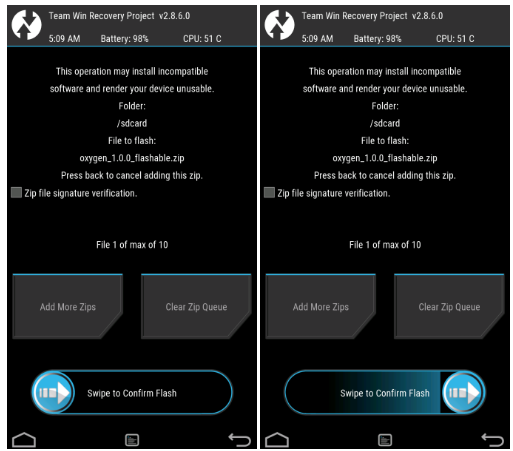
    Swipe To Confirm
  7. Once the installation has been completed then repeat the above action to flash the Gapps.
    TWRP Finished Install
  8. Now you need to tap Wipe cache/dalvik button in case you experience bootloop or other technical problem.
  9. Now you need to tap the Reboot System button.
    TWRP Reboot System
  10. Done.
That's all guys your OnePlus One is already updated to the Android 7.1.1 Nougat with AOSPlus One custom ROM. And you can try it for a few days, test it guys, if you like it then set it to be your daily driver. And as usual. See you again in the next posts.

Sunday, 1 January 2017

Download Lenovo A269i Stock ROM

Here is the download link for Lenovo A269i stock ROM, if you want to install a stock ROM for your Lenovo A269i then you can follow the full instructions from this post and your device's will once again be powered with the official ROM released by Lenovo.

The reason people decide to flash a stock ROM is of course to fix some technical issues that effecting their device's performance, such as soft brick, bootloop and others. And you can also restore your lost warranty with a stock ROM. So whatever your reason might be. Then this post will help you achieve your reason.
Advertisements.

And remember one thing guys, you are recommended to backup everything you regard important, because flashing a stock ROM will wipe out your data.
Download Lenovo A269i Stock ROM

Download these files to your computer and then install.
Requirements.
  • Prepare your computer and also a USB cable.
  • If your device is rooted then this stock ROM will wipe your device's root access.
  • If your device is powered with a custom ROM or a custom recovery then this stock ROM will remove them all.

How to install stock ROM on Lenovo A269i?

Follow the instructions without skipping anything and be sure you have made backups.
Advertisements.


  1. Open the SP Flash Tool you previously downloaded and installed on your computer.
    Install Stock ROM On Android SP Flash Tool Tutorials
  2. On the SP Flash Tool interface, you need to click on the Scatter Loading button, see the picture below guys, oke.
    Scatter File Stock ROM Install
  3. Now browse the scatter file on the folder which you stored the Lenovo A269i in .txt extension.
    Install Stock ROM on Lenovo Device
  4. The Lenovo A269i stock ROM scatter file will be loaded by the SP Flash Tool.
  5. Now you must click the Download button just like in the picture below.
    How to install Lenovo A616 stock ROM
  6. Remove your device's battery while your phone is turned off (Remember while your phone's turned off or if your device's battery un-removable just connect USB to PC then connect to your device while pressing Up button).
  7. Connect USB cable to PC then connect USB cable to your Lenovo device, then put the battery back to your Lenovo while pressing Volume Up (+), this will automatically begin the flashing process.
  8. Wait for the flashing process to finish, you can take a cup of tea while waiting, :)).
  9. When you see this round green notification that means the Lenovo A269i stock ROM was successfully installed, congratulation then guys.
    Install Lenovo Stock ROM Tutorials
  10. Unplug your device from its USB cable now then take off the battery of your Lenovo device.
  11. Then place the battery again on the Lenovo of yours and then power on your device.
Well done you have successfully downloaded and flashed the Lenovo A269i stock ROM.

Tuesday, 27 December 2016

Download Android AIO Driver

Download Android AIO driver. Hi guys today I would like to inform you about one of the good Android drivers, namely Android AIO driver that you are welcomed to download and install it on your computer. The Android AIO driver comes with complete files you need to make improvements to your Android via computer.

In Android AIO driver you will find the ADB driver, MTK driver to connect your pc to any Mediatek device, Samsung driver and also SPD driver to connect to Spreadtrum device. Of course you will find that useful if you own devices that are supported by the driver.
Advertisements.

And Android AIO driver is free and no need to pay anything just to download and install it on PC.


Download Android AIO Driver


Features of Android AIO driver.
  • ADB driver. With it you can simply connect your computer to any Android device without the need to firstly install PC suite app.
  • Samsung driver. If you own a Samsung Galaxy flagship device then the Android AIO driver can be used to bridge your Samsung device to PC.
  • SPD driver. Connect any of your Spreadtrum device to PC and it's will be detected.
  • MTK driver. Any MTK devices are supported with Android AIO driver to connect to your computer.
See how to install ADB & Fastboot drivers on computer and how to install TWRP on any Android devices.
Advertisements.


I hope you find the download Android AIO driver post useful and tell your friends about this post who know they might need it and see you again.

Install ADB & Fastboot Drivers On Computer Easily

You can learn the fastest way to install ADB & Fastboot on Windows computer, the tutorials written here will elaborate the quickest and easiest way for installing those useful tools to optimize our Android powered device.
Advertisements.

As we know, in the realm of Android we are familiar with the activities like rooting, tweaking and modding our Android OS. Those kind of activities without doubt need the involvements of fasboot (Or mostly).

A little bit about ADB and Fastboot.

Install ADB & Fastboot Drivers On Computer Easily
What is ADB?

ADB means Android Debug Bridge. With this tool you can send Linux or Android commands from computer to connected Android powered smartphones or tablets.

What is Fastboot?

Fastboot is a tool that works in fasboot / bootloader mode. You can perform number of things, for example re-flashing your system partition. To use Fastboot, then your device should already in the bootloader unlocked stage. You can do a manual update using this tool.

I think that's sufficient to figure out what these tools can benefit your Android device. It's time to bring the tools to your Windows computer.

So that's why installing ADB & Fastboot drivers are required. And fortunately it's not a hard task. That's credit should be given to one of the XDA senior memberS namely, Snoop05 who have released a tiny size yet very handful app, ADB Installer for us to use. And it works.
Advertisements.

It's almost an instant process. And will benefit you so big. If you are ready then we can start the flashing process.

But before we explore the tutorials, I recommend you to read the following preconditions, please read them.

Preconditions.
  • A computer Windows.
Features and the details of ADB Installer app.
  • Size only 9.18 MB.
  • Only 15 seconds installation period.
  • AIO - ADB, Fastboot and also Drivers.
  • The installation procedurs are easy -- simply run it then done.
  • Clean. ADB and Google Drivers from latest SDK.

Download ADB Installer setup file by an XDA member @Snoop05


Requirement.
  • Get the ADB installer app from the download links based on the versions of your choice.

Install ADB & Fastboot Drivers On Computer Easily.

Instructions.
  1. Double-click on the ADB-Setup-1.4.2.exe you previously stored on your computer.
    ADB Setup Android
  2. A CMD or command prompt will then appear with blue color.
  3. Just Yes to all the section (Just type Y then enter, that means Yes).
    Install ADB & Fastboot Drivers On Computer
  4. After ADB & Fasboot and Drivers are entirely installed, the command box will close automatically. That means ADB & Fastboot is now running to your system now.
    How to Install ADB and Fastboot on Windows
  5. Finish.
Once you have done it then you can do several unofficial activities such as install TWRP on any Android devices.

Congratulations for your success installing the ADB & Fastboot on your Windows computer.

Monday, 26 December 2016

How To Install TWRP Recovery On Android Via Fastboot Mode

How to install TWRP recovery on Android Via Fastboot mode. Installing TWRP recovery on Android device is important thing that you should have done in order to perform tweaks that will help improving or optimizing your Android powered device.
Advertisements.

TWRP recovery is a non-stock recovery image that offers more technical abilities compared to the stock recovery, surely you have familiars with activities like rooting and custom ROMs. Yes with TWRP you can install SuperSU rooting package and custom ROMs like CynogenMod to your device.

TWRP recovery is one of the most used custom recoveries now days, not only it does exactly the same as the popular CWM recovery, it is more user friendly since it's offering touch screen ability so you don't need to use your device's physical buttons like Power or Volume like other custom recovery environments. With TWRP, all you need just tapping the menu using your fingers and done.

Are you convinced to install TWRP recovery on your Android device? Just follow the full instructions written on this post. You will be correctly guided.
Advertisements.

In this post you will be guided to install TWRP recovery on Android via Fastboot. The process is quite simple. Just keep reading guys.
How To Install TWRP On Android Via Fastboot Mode

But you need to firstly read the following points.
  • Your Android device's bootloader should already be unlocked.
  • You have a working Windows computer.
  • Have installed original USB drivers and a USB cable.
  • You have set Fasboot and ADB to your computer.
  • Make sure you have enabled your Android debugging mode.
Since you have read all the points. You are now recommended to grab the following TWRP recovery image file. Please.

How to install TWRP recovery on Android via Fastboot

  1. You need to install adb and fasboot to your computer.
  2. When done. Put the TWRP img file you downloaded previously to the Adb & Fasboot folder on your PC.
  3. Then launch the command prompt inside the ADB & Fasboot folder, by pressing Shift + Right click on anywhere within the folder, then choose Open Command Window here.
    How To Install TWRP Recovery On Android Via Fastboot Mode
  4. You can connect your Android device to your PC. And then type the command below.
    adb reboot bootloader
    adb reboot bootloader.png
  5. If you are asked for permission just choose OK to Allow USB debugging.
  6. When your Android device is in bootloader mode, just type the command below to install TWRP.img file.
    fastboot flash recovery twrp-2.8.x.x-xxx.img
  7. Change the twrp.img with the name of your TWRP recovery.img, or simply use the twrp.img name.
  8. After the TWRP is fully installed to your Android device, you can reboot it then, just use this command guys.
    fastboot reboot
    Fastboot Reboot
Great! You just finish installing the TWRP recovery on Android via Fastboot mode. Congratulations because you can now carry out a host of major hacks and tweaks, from creating a full backups to flashing awesome custom ROMs.